

MyLIU
Logging in on a Desktop
Step1
Login to MY.LIU.EDU
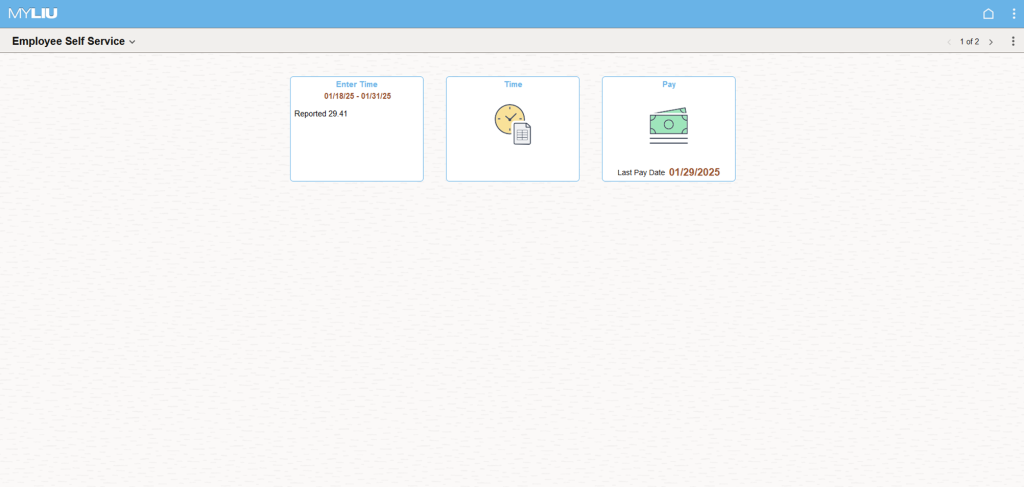
Reporting Time on a Daily Basis
Step 1
Click the Enter Time tile

Step 2
For each day worked, populate the page as follows:
- In the In column, enter the time you started working.
- In the Out column, enter the time you stopped working.
If you worked more than 6 hours, populate the Break Out and Break In columns with the start and end times of your break.
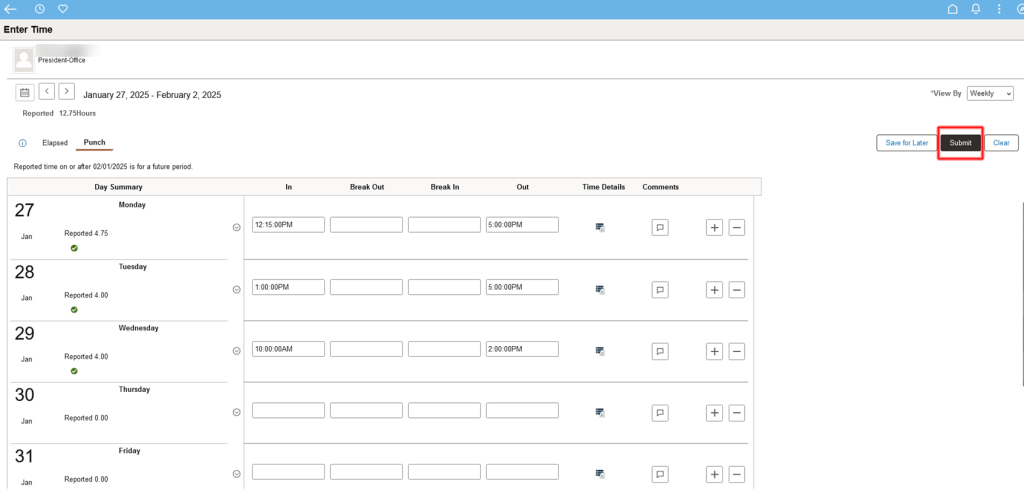
After entering all the time, click the Submit button (circled above)
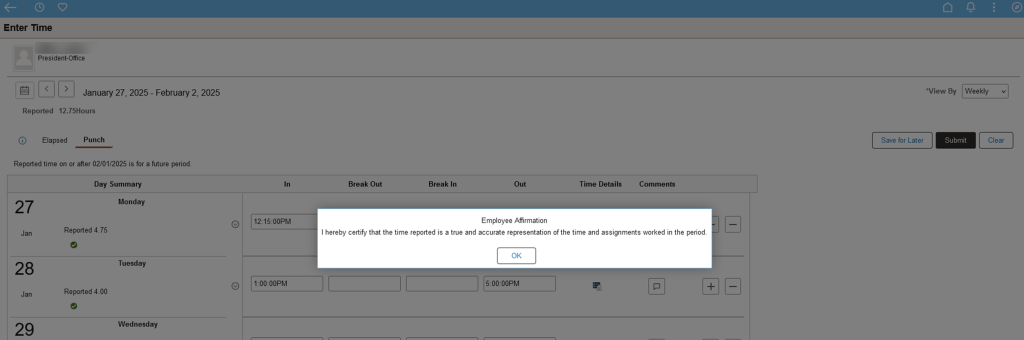
Step 3
Click OK to certify the transaction.
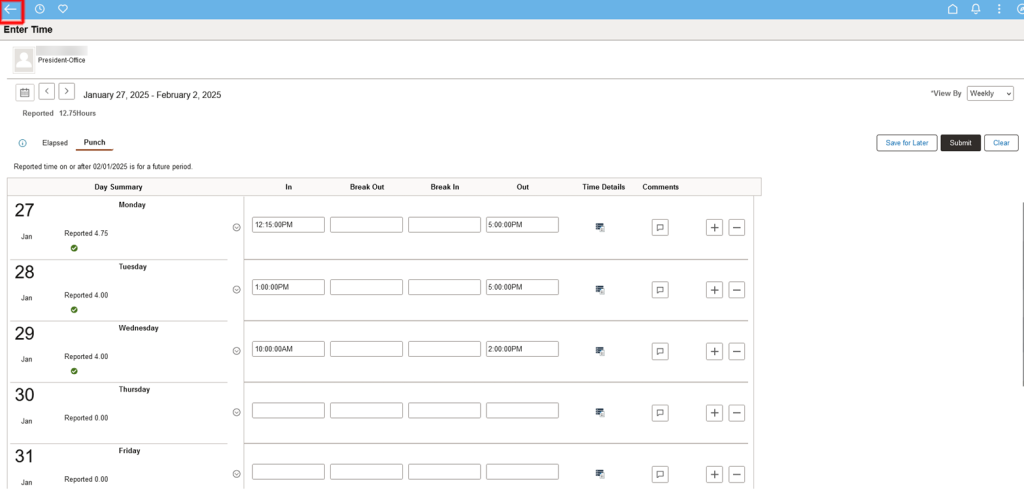
Step 4
Click the back arrow to return to the homepage.
Viewing Time on a Weekly Basis
Step 1
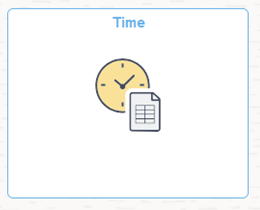
Click the Time tile
Step 2
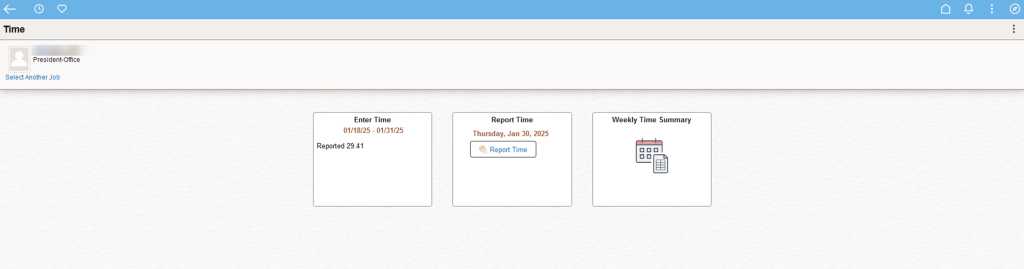
Click the Weekly Time Summary Tile. The following screen will be displayed.
Step 3
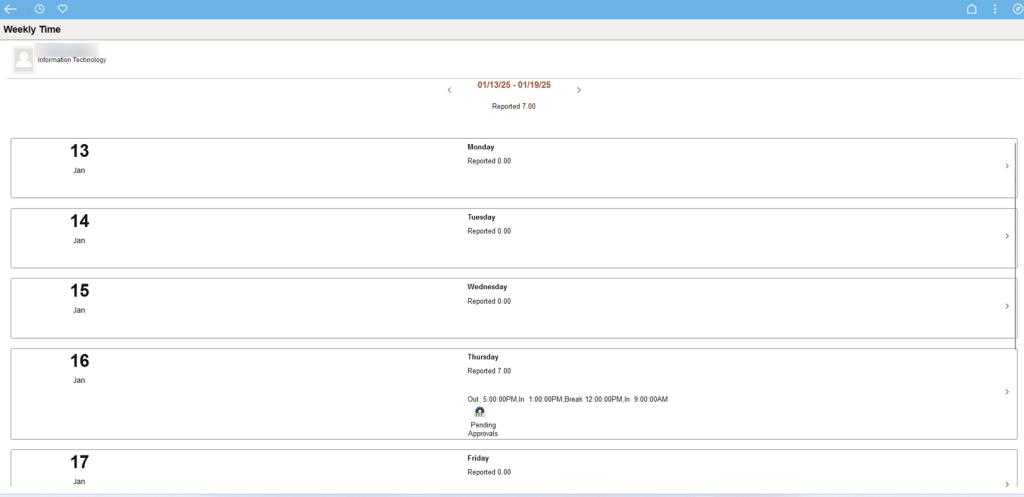
Scroll down to see additional days. Click on the day you wish to enter or view time. The Report Time page will be displayed.
Step 4
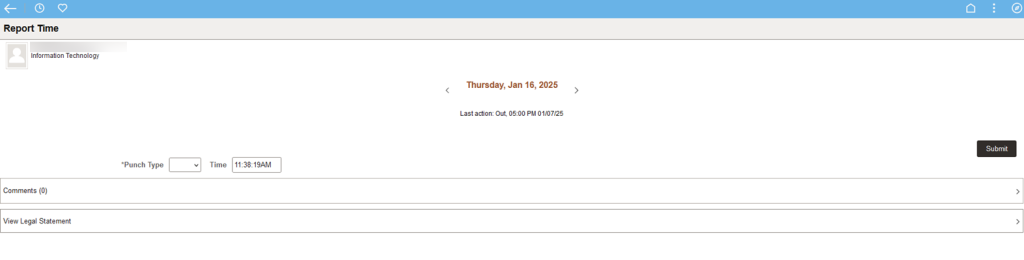
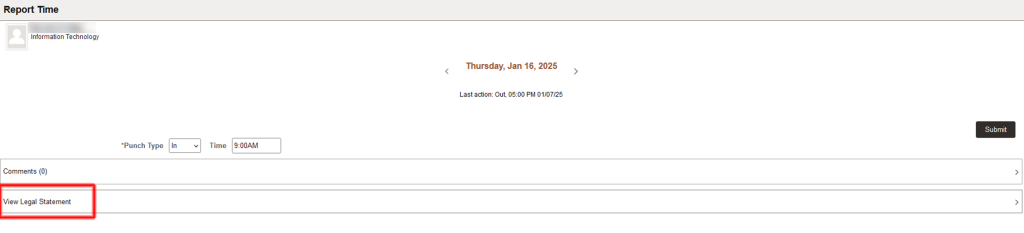
Select the Punch Type drop-down box and select the type of punch. In the Time box, enter the time of your punch – example 9:00AM.
Step 5
Click View Legal Statement (circled above) to read the certification message.
Step 6
Click the X to return to the previous page.

Step 7
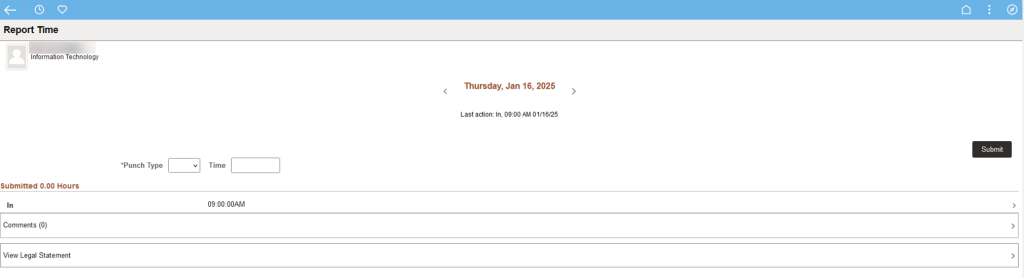
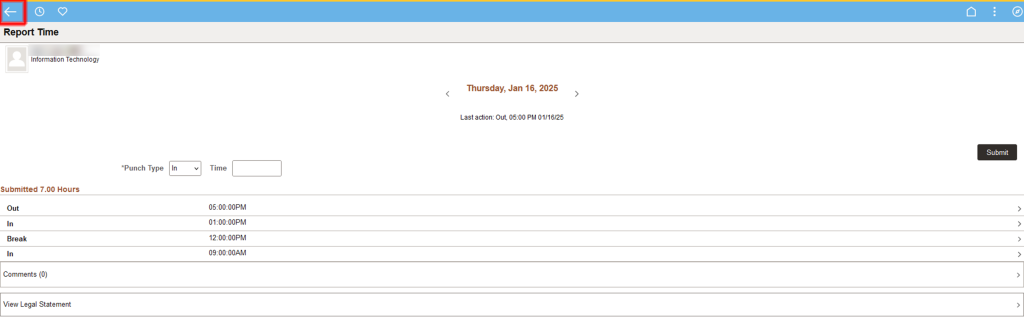
Click the Submit button. Once time has been submitted, the punch history will be displayed along with the number of hours worked.
Step 8
Click the arrow to return to the Time Homepage.
Logging in on a Mobile Device
Step 1
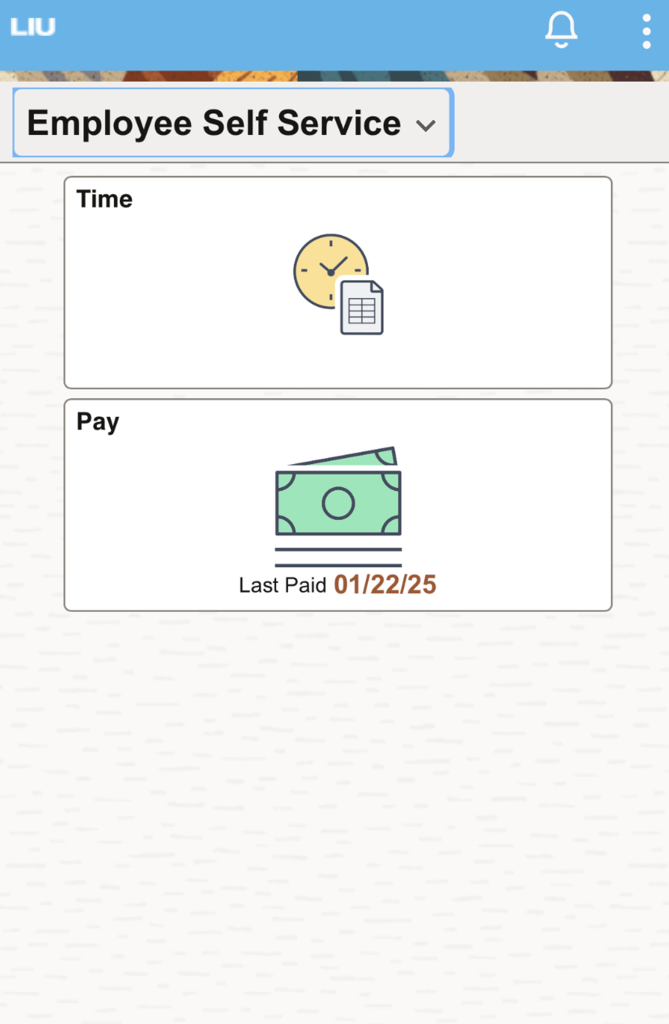
Login to MY.LIU.EDU and Click the Time tile
Reporting Time on a Daily Basis
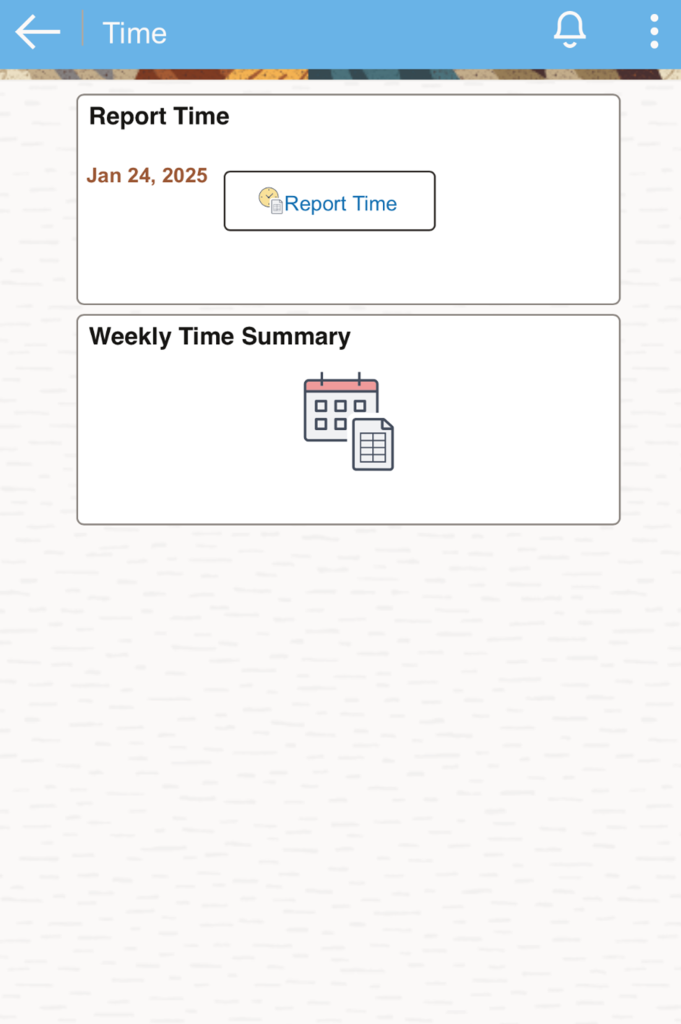
Step 1
Click the Report Time link
Step 2
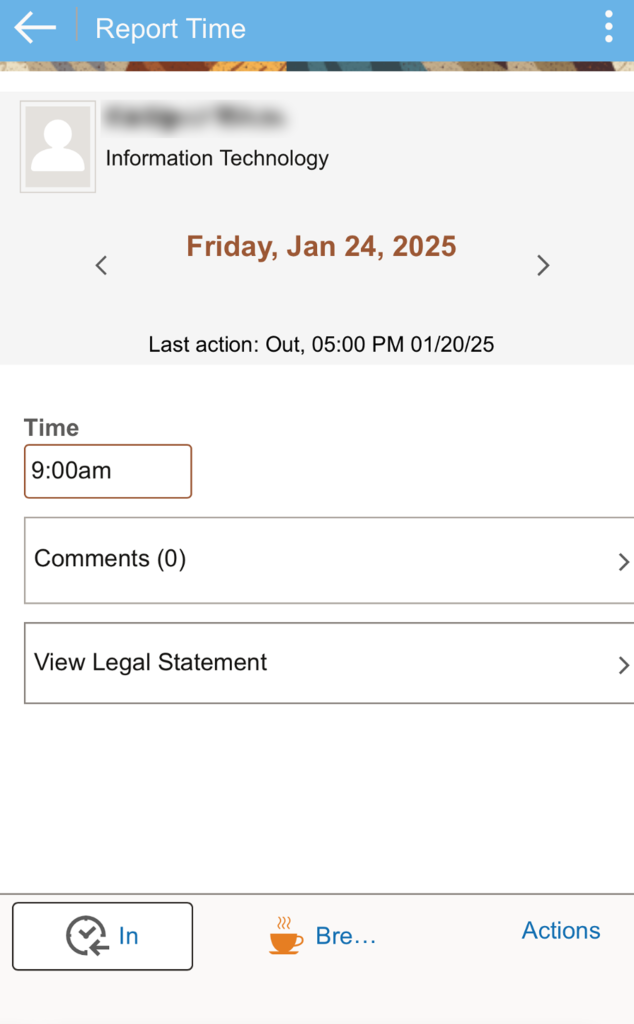
In the Time box, enter the time of your punch – example 9:00AM. Click View Legal Statement to read the certification message.
Step 3
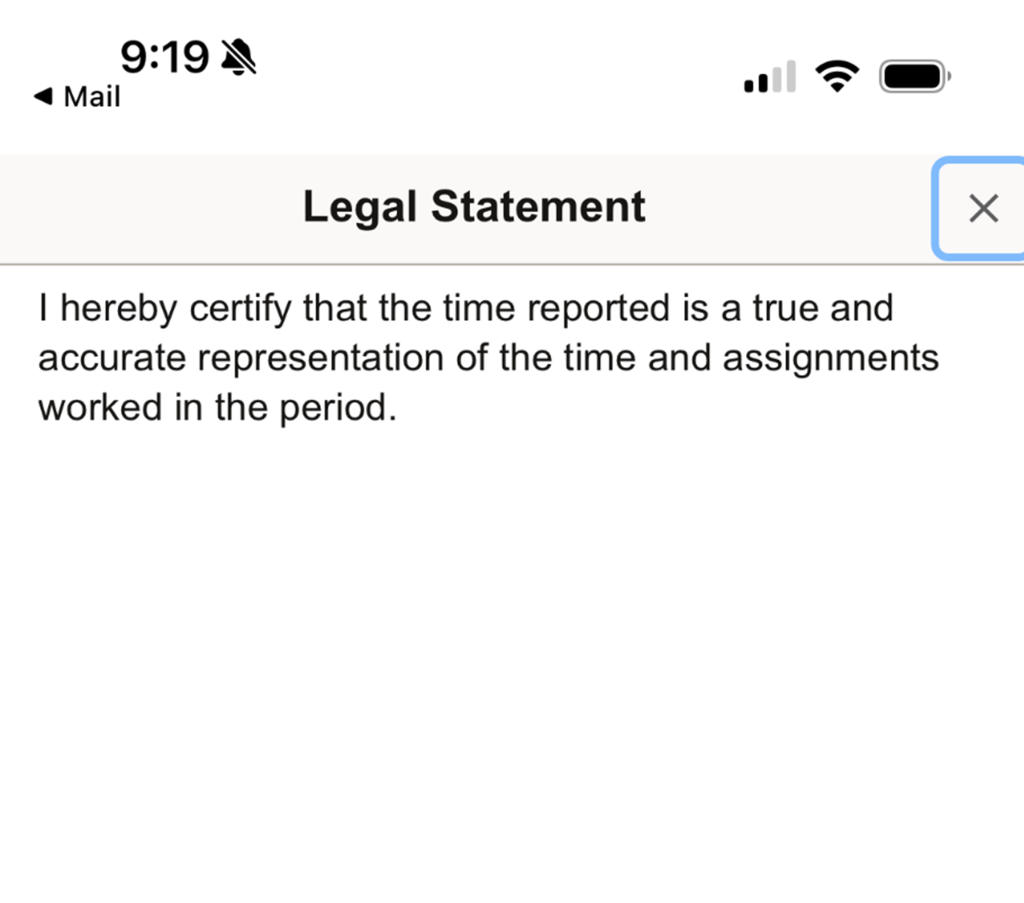
Click the X to return to the previous page.
Step 4
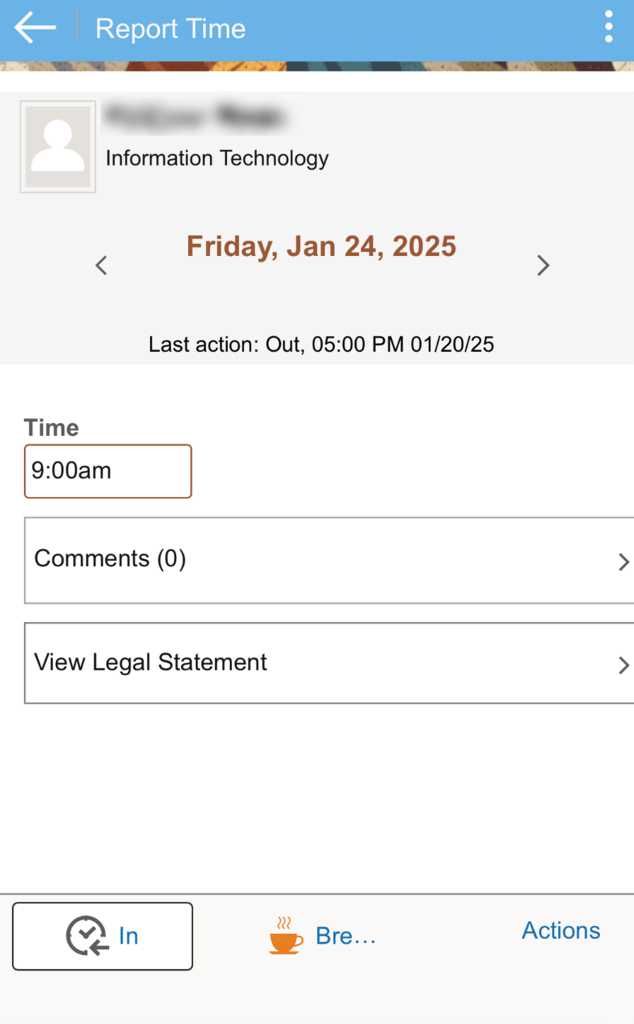
Click the In button. Once time has been submitted, the punch history will be displayed along with the number of hours worked.
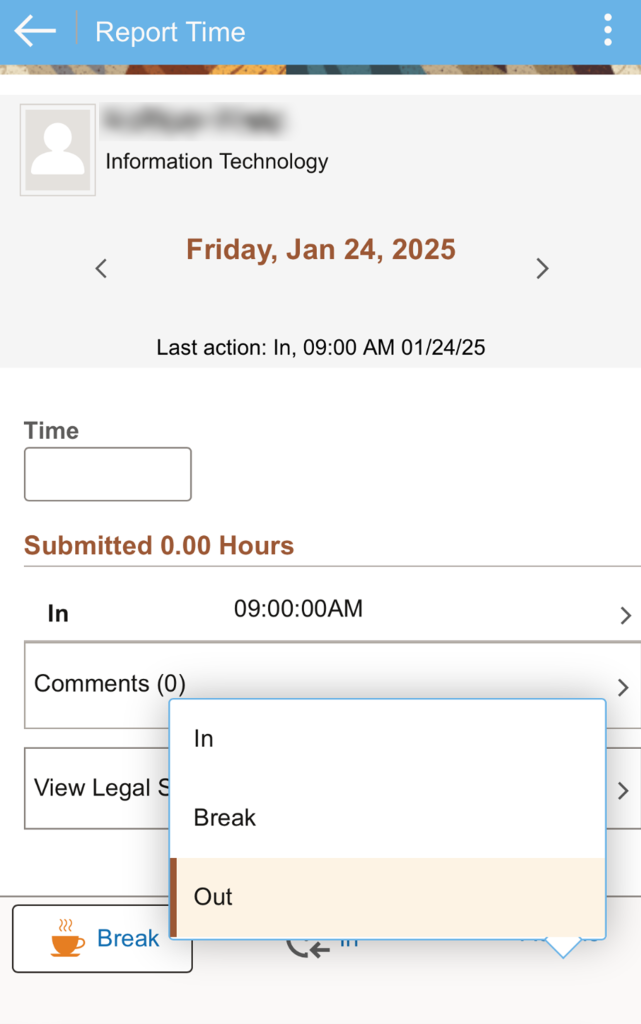
Click the Actions button to display all the available punch types and select on the appropriate choice.
Step 5
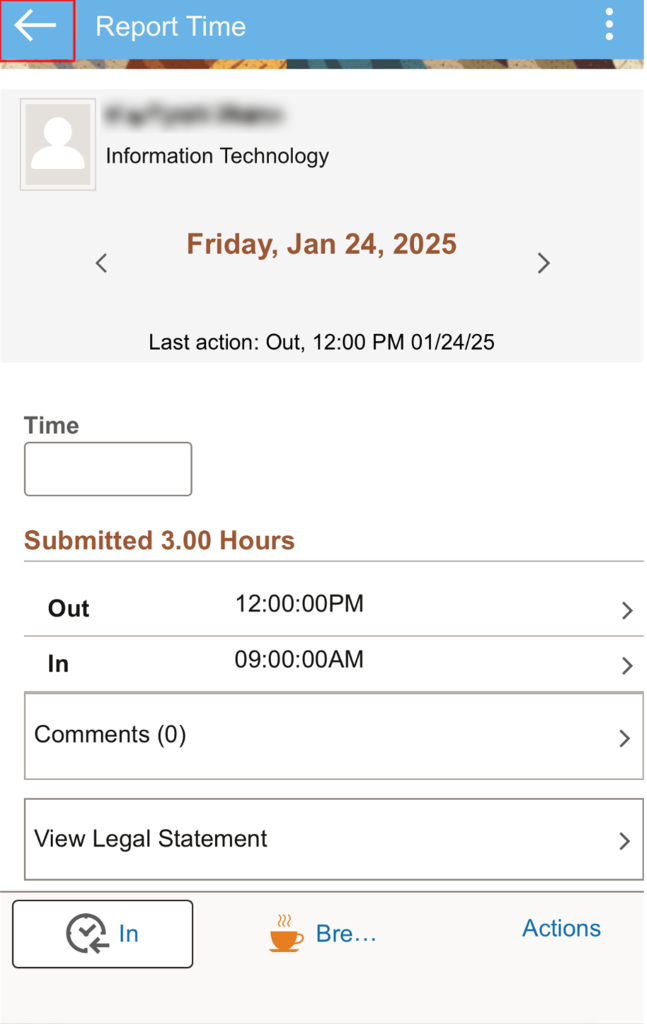
Once time has been submitted, the punch history will be displayed along with the number of hours worked.
Step 6
Click the arrow to return to the Time Homepage.
Viewing Time on a Weekly Basis
Click the Weekly Time Summary Tile
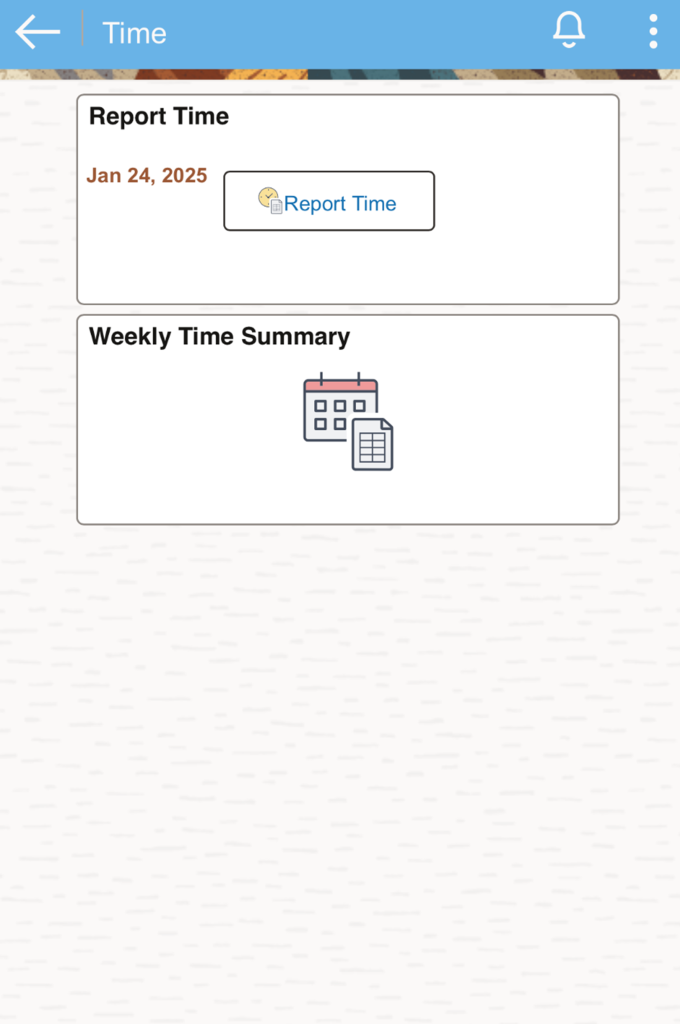
The following screen will be displayed

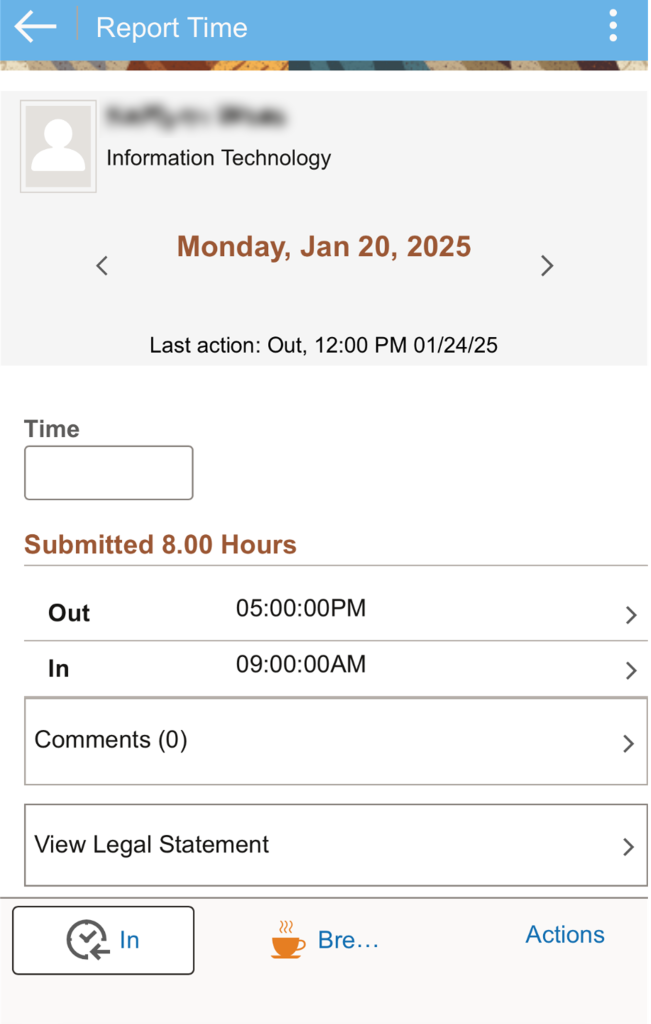
Scroll down to see additional days. Click on the day you wish to enter or view time. The Report Time page will be displayed. Follow the instructions listed above.
I am text block. Click edit button to change this text. Lorem ipsum dolor sit amet, consectetur adipiscing elit. Ut elit tellus, luctus nec ullamcorper mattis, pulvinar dapibus leo.