
Steps
Step.1
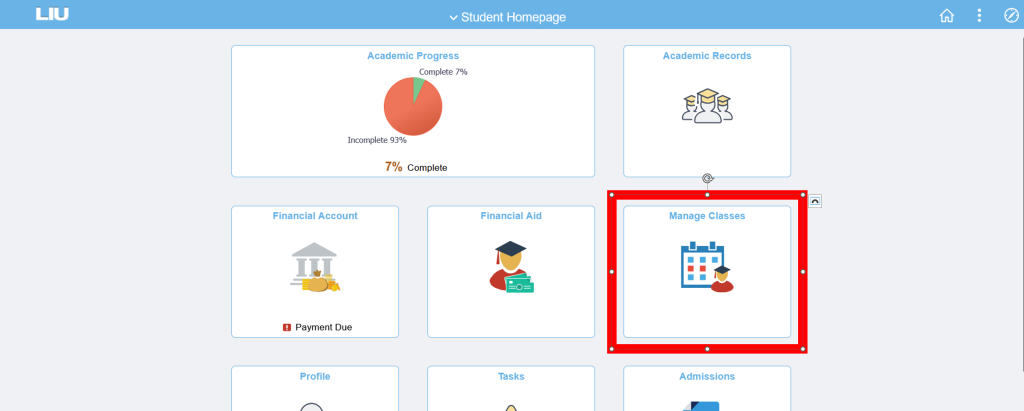
Login to MY.LIU.EDU and from your Student Homepage screen, select the “Manage Classes” tile.
Step.2
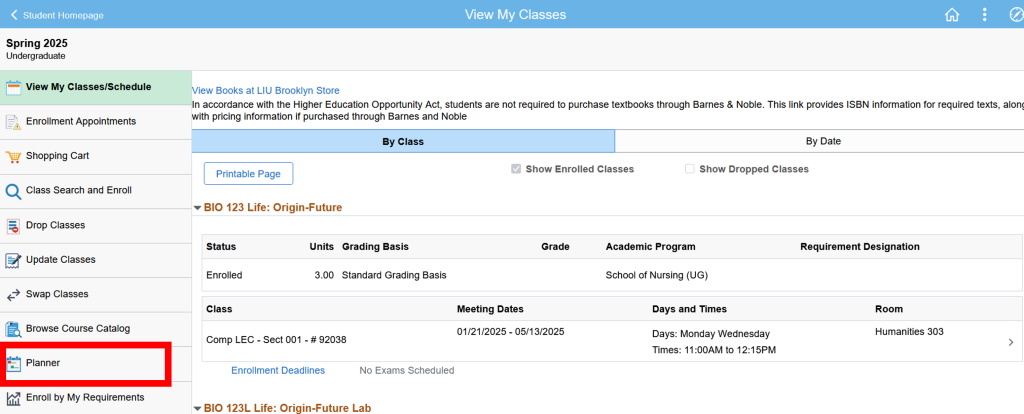
On the next page, select “Planner” from the left menu bar.
Step.3
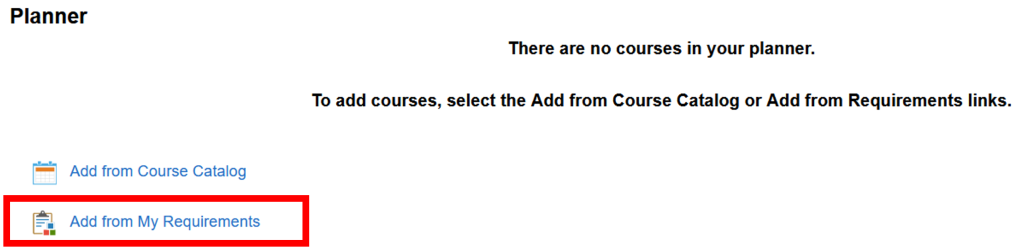
Select “Add from My Requirements” link.
Step.4
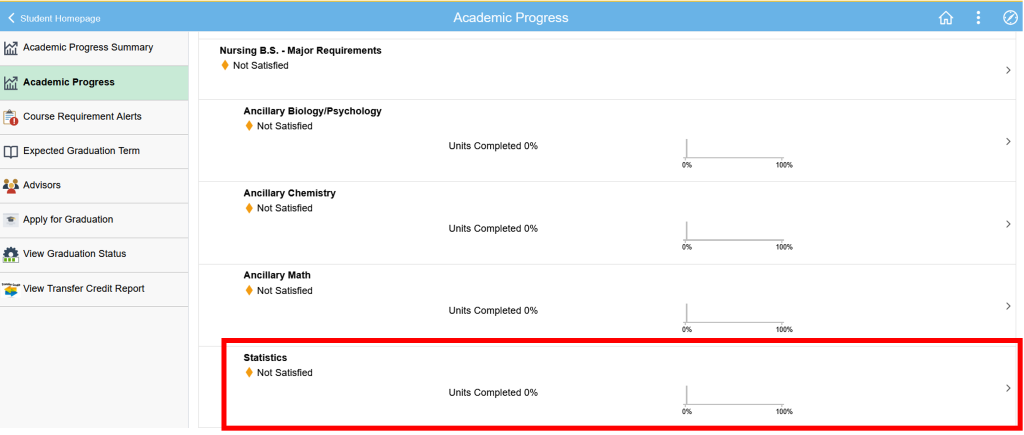
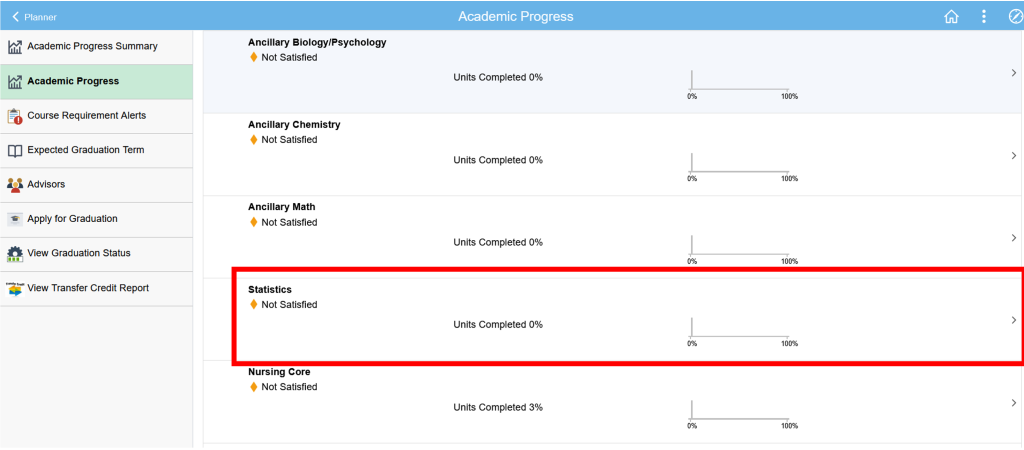
This will take you to the Academic Progress page. Scroll down to the requirement group that contains the course you want in your Planner and then click in the requirement box.
Step.5
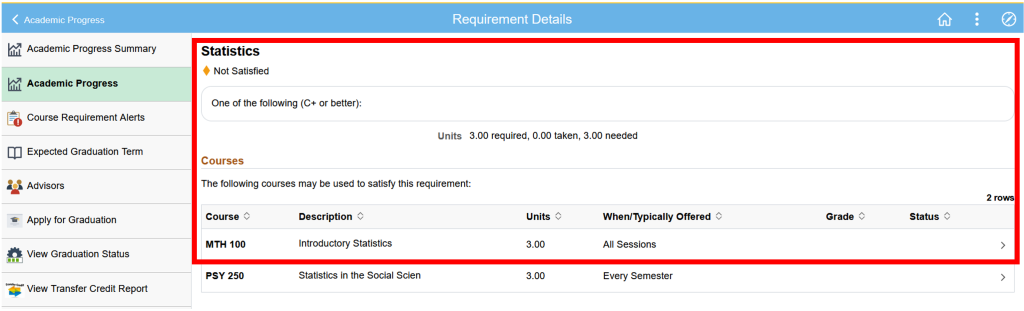
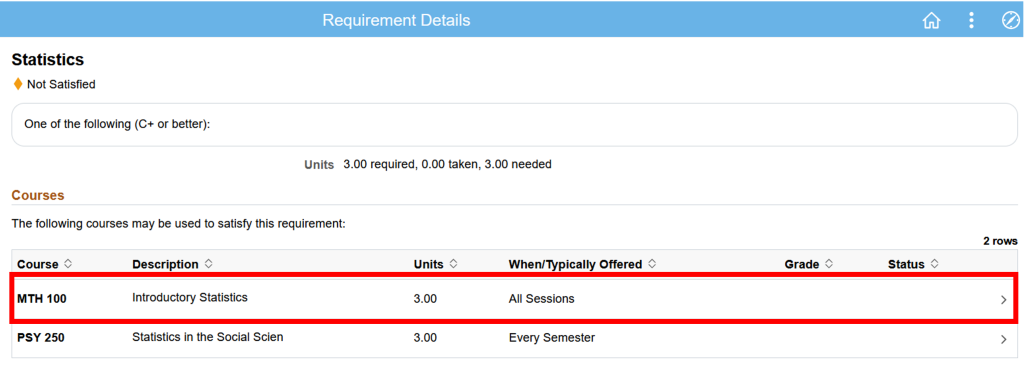
In the Requirement Details, select the course you wish to add.
Step.6
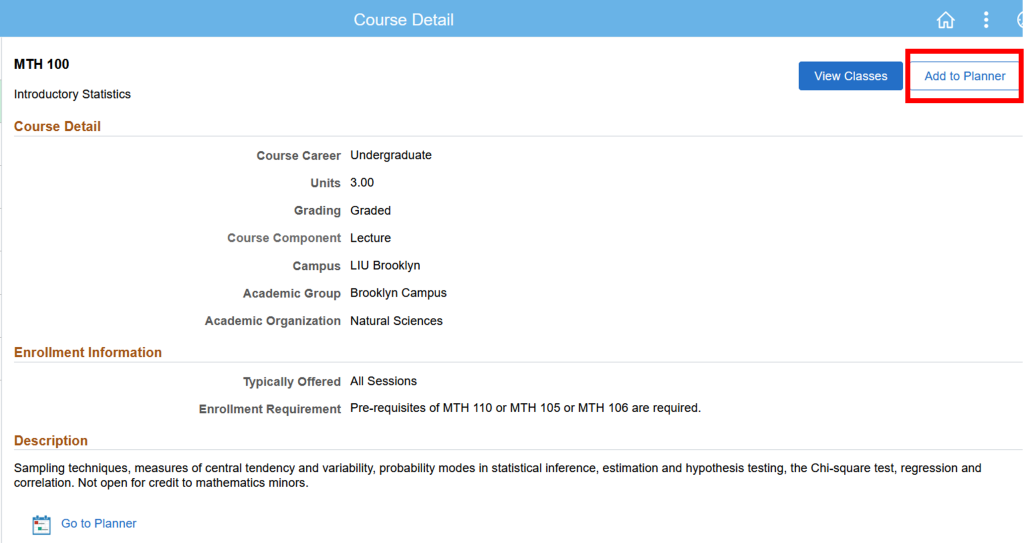
This will take you to a page with further details on the course, including description, when it is typically offered, and any Enrollment Requirements. To add the course to your planner, click the “Add to Planner” button in the top right corner of the page.
Step.7
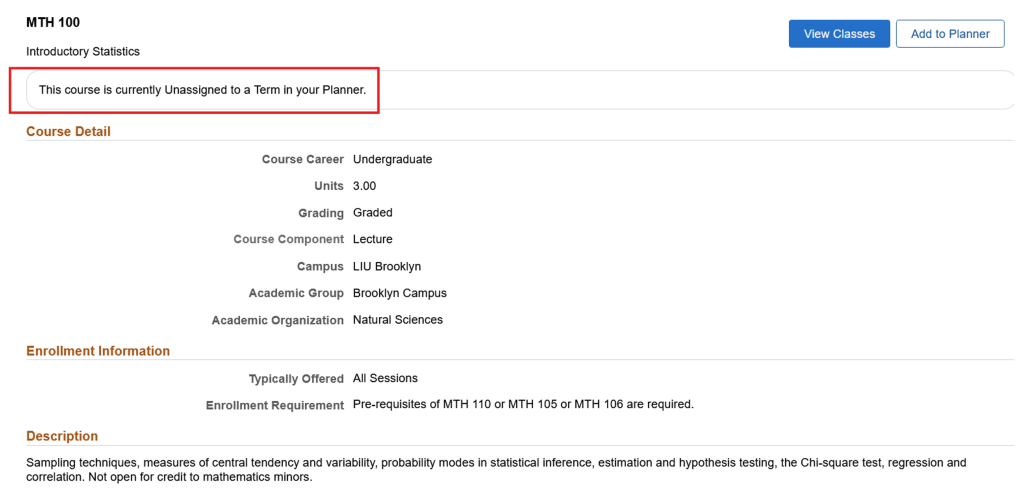
A green banner will then flash across the top of the page, confirming that the course has been added successfully to your planner.

Step.8
To now assign the course to a specific term, follow the “Go to Planner” link at the bottom of the page.

Step.9
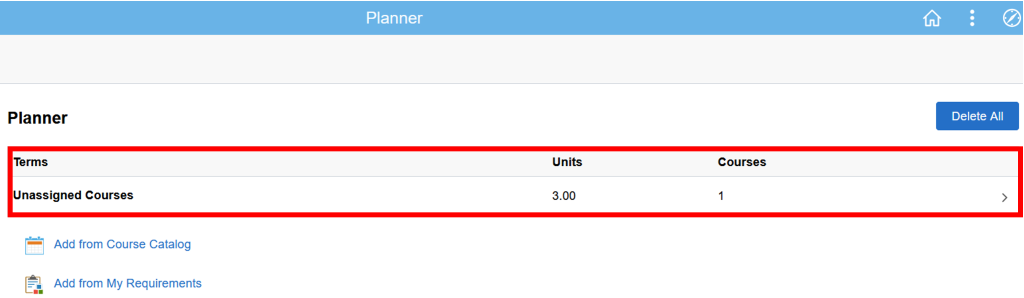
Click on the “Unassigned Courses” box.
Step.10
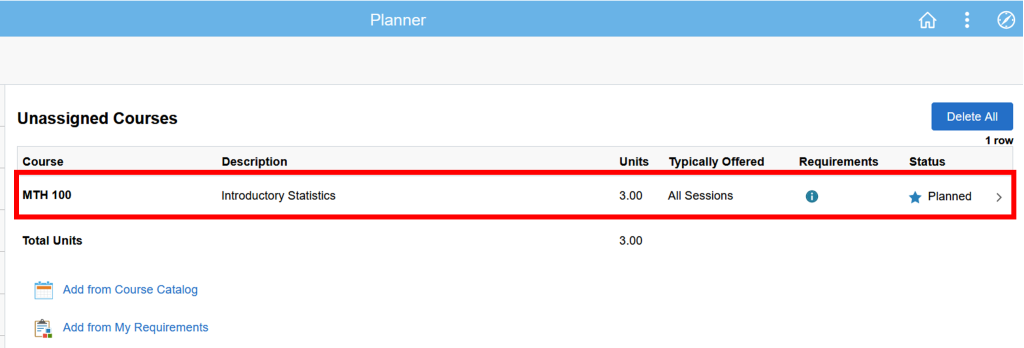
On the next page, select the course, taking you back to the course detail page.
Step.11
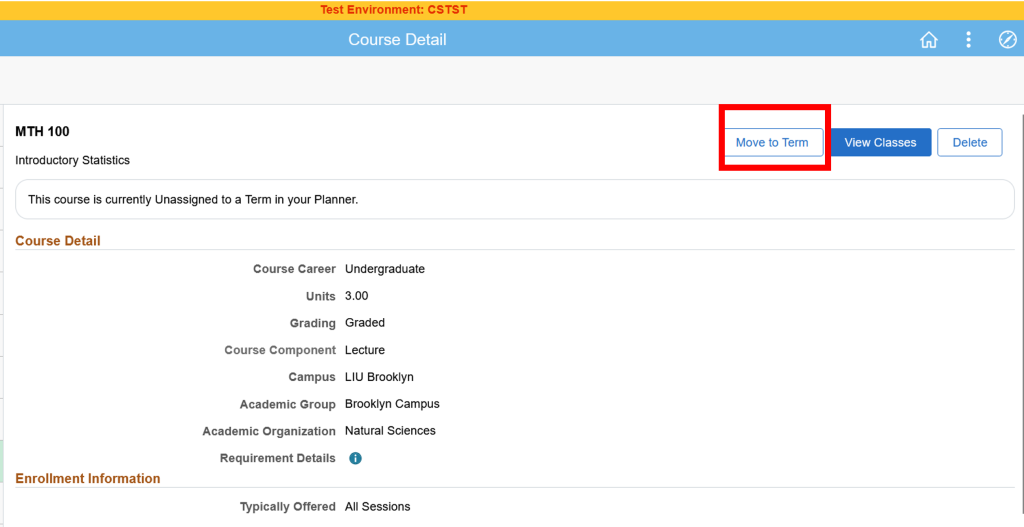
Select the “Move to Term” button in the top right corner.
Step.12
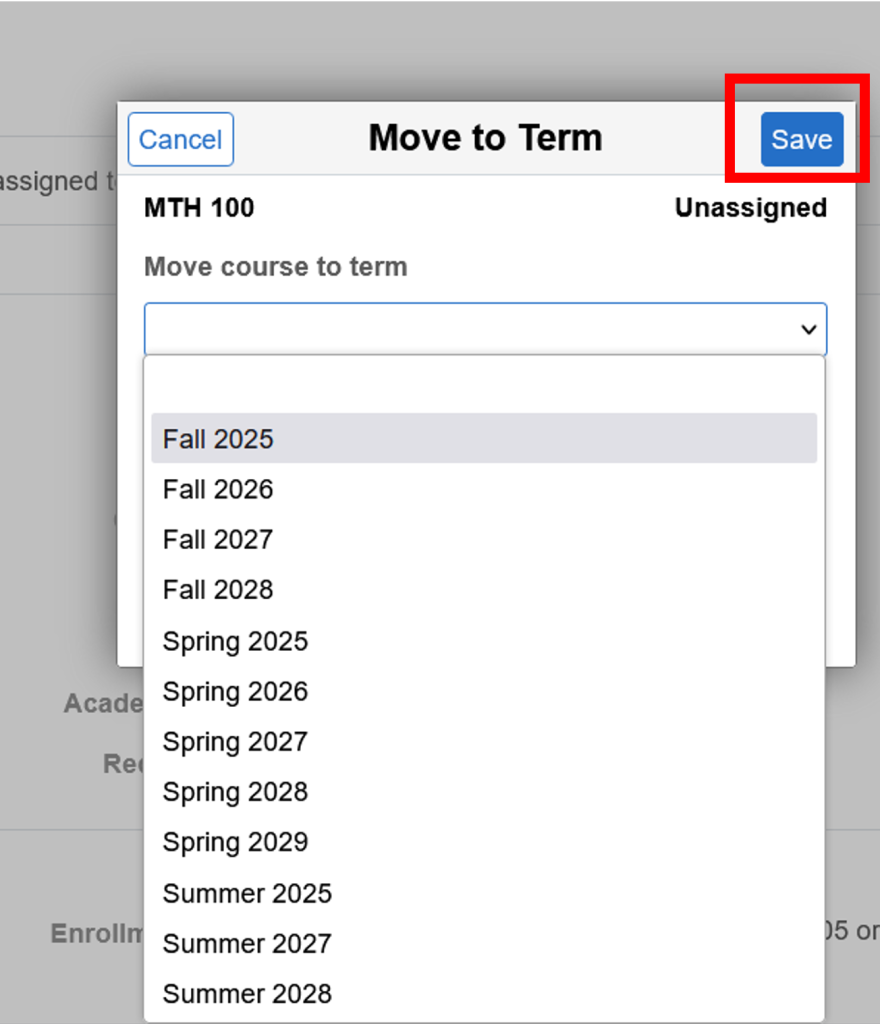
Then select the specific term you wish to assign the course to from the drop-down list and then click the “Save” button.
Step.13
A green banner will flash across the screen to confirm the course has been moved to the term.

Step.14
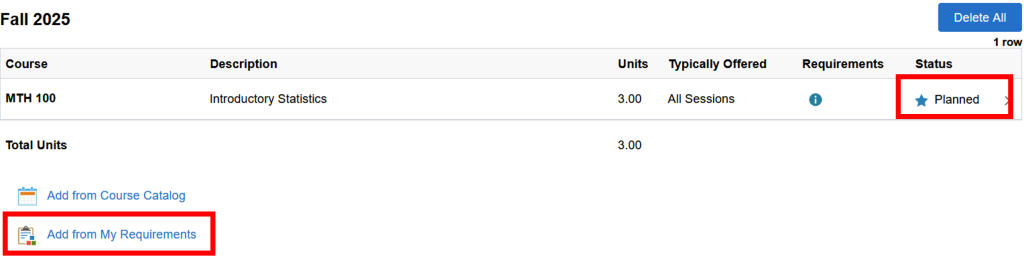
You will now see the course under the term grouping and confirmation of the class status as “Planned” with a blue star. You can continue to add further courses to your planner by selecting the “Add from My Requirements” link and repeat the process of selecting courses from your Academic Progress page.
Step.15
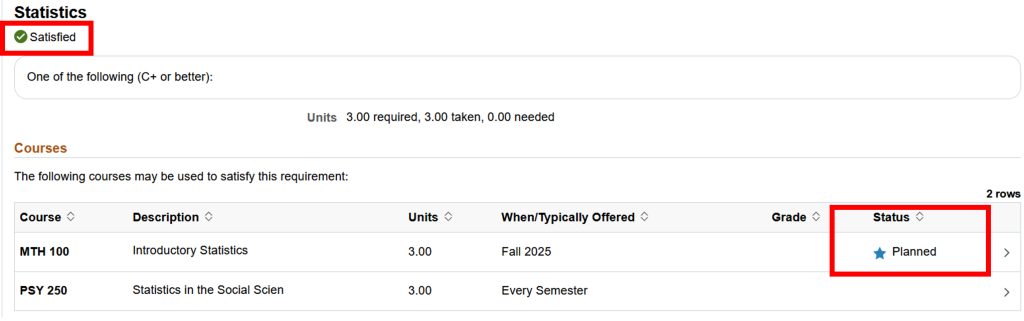
You will notice that your requirements will start to appear as “satisfied”, the more courses that you add to your planner, as well as any courses that you may have added to your shopping cart.
Step.16
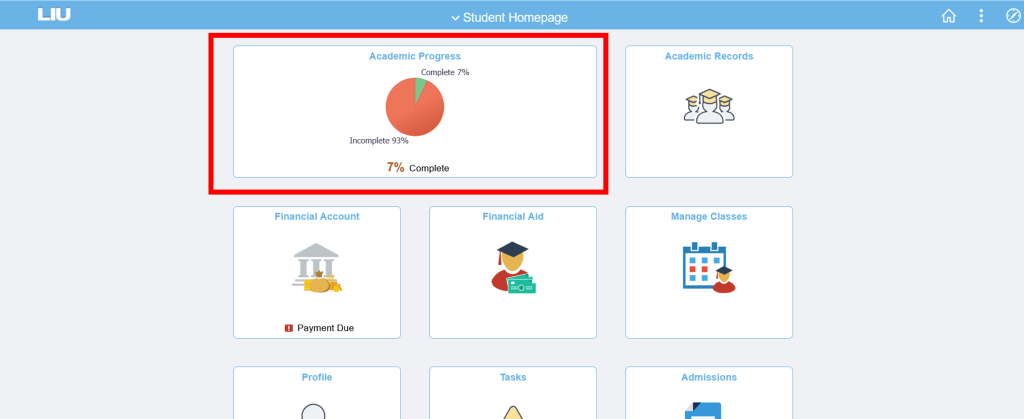
*It is important to note that the Academic Progress page you use with your Planner is different from the Academic Progress page you access from your Student Homepage. Planned courses will not have any impact on the Academic Progress Summary pie chart completion percentages or count towards satisfying your actual degree requirements. You are responsible for enrolling and completing all necessary course requirements. *