LMS (Brightspace)
You are here:
LOGIN to LMS
LIU TRAINING VIDEOS

Brightspace Training videos for Faculty

Select a category below to learn more about it:

Getting Started

  1. Go to lms.liu.edu or click the button above.
  2. Follow the directions on the Brightspace landing page to log in.
  3. See the videos below for more detailed information on getting situated in Brightspace.

Navigating Brightspace
Manage Account Settings
Manage Your Profile
Manage Notification Settings

Quizzes

Brightspace offers a robust quiz creation and administration tool with several customizable options that make it ideal for assessment, pre-assessment, and acknowledgment of course policies. The Quizzes tool enables you to create and manage points-measured assessments. The following guide provides detailed steps on the quiz creation process.

  1. On the navbar, click Assessments and select Quizzes.
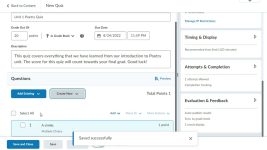
  2. On the Manage Quizzes page, click New Quiz.
  3. Enter a name for your quiz.
  4. In the Questions area, click Add Existing or Create New. Follow the steps below to either create new individual questions, create new questions by section or import questions from the question pool
    Creating New Questions
    1. Select Create New, New Question and the type of question.
    2. Enter the question text and use the Options menu to set advanced criteria.
    3. Click Save for the main Question Editor page, Save and New to create another question of the same type or Save and Copy to create a new question identical to the question you just created.
    Creating New Questions by Section

    Sections can be used as a method to group and organize questions within Quizzes.

    1. Select Create New and then Section.
    2. Enter a section title.
      -To hide the section title from learners, select the Hide Section Title from students check box.
    3. Enter the Section Text.
      -To hide the section text from learners, select the Hide Section Text from students check box.
    4. To shuffle questions within this section, select the Shuffle questions in this section check box
    5. Click Save or from the Save drop-down menu click either Save and New or Save and Copy.
    Adding Questions Using the Question Pool
    1. Select Create New and then Question Pool.
    2. Enter a Question Pool Title.
    3. Specify the number of questions from the pool that you want to appear to learners and how many points learners will receive for each question they answer correctly. The appropriate number of questions will be chosen randomly for each quiz attempt.
    4. Click Browse Question Library, search for and select the individual or group of questions you want to add and then click Import.
    5. Click Save.
    Importing Questions From your Computer
    1. Click Add Existing and then Upload a File.
    2. Drag and drop your CSV file or IMS QTI compliant course package (ZIP folder) or click Browse Files and select the file you wish to upload
      Please note: If you do not have the proper CSV template, you can download templates from Brightspace.
    Importing Questions From the Question Library

    The Question Library is a good place to store, organize, easily access and see statistics for all your questions within a course. As a a central repository, it stores and archives questions which you can reuse within a course.

    1. Click Add Existing and then Browse Question Library.
    2. In the Source Section drop-down list, choose the Collection Root or a specific section from which existing questions reside.
    3. Select the check boxes beside the questions you want to import, then click Add.
    Importing Questions From the Learning Repoitory
    1. Click Add Existing and then Import from Learning Repository.
    2. You can use the search bar to Search For repositories you wish to import questions from or click Show Repositories to see which University at Buffalo Repositories are available to select questions from.
    3. When you find the file you want to import, select the option button next to the object and click Select.
  5. To set permissions and restrictions on a quiz:
    Setting Permissions and Restrictions for Quizzes
    • Availability Dates & Conditions
      1. Set the Start Date and End Date
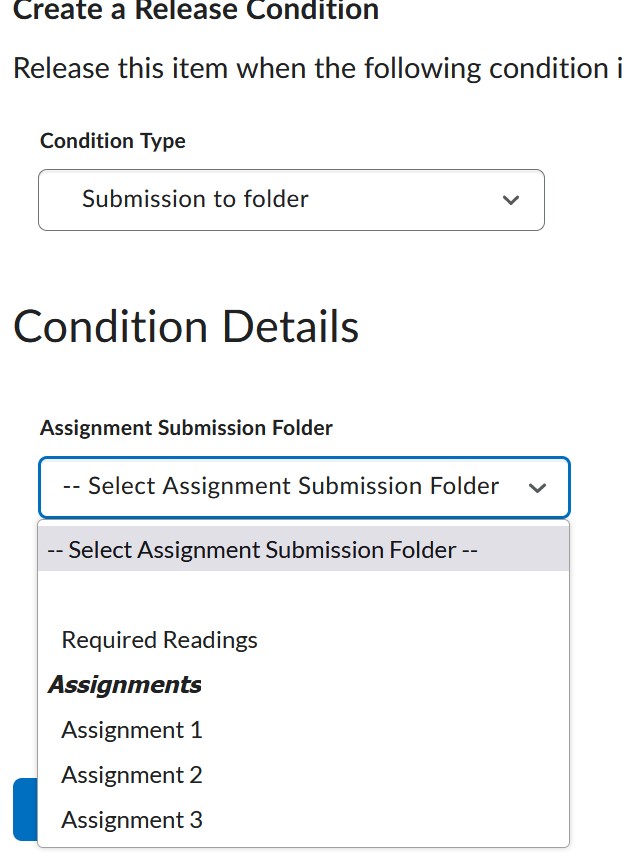
      2. Choose a Release Condition
      3. Manage Special Access
      4. Create a Password to take the quiz
      5. Restrict the origins from where students can take the quiz using IP Restrictions.
    • Timing & Display
      1. Select whether students have No Time Limit, a Recommended Time Limit, or turn on an Enforced Time Limit.
      2. Please note:The Enforced Time Limit allows you to set a “grace period” (which can be set at 0); you can select whether students can continue working without a penalty, prevent the student from making additional changes, or automatically score the quiz as a “0” after this grace period expires.
      3. Shuffle the Quiz questions
      4. Allow Hints
      5. Disable Email, Instant Messages, and Alerts within Brightspace.
    • Attempts & Completion
      1. Manage the number of attempts a student can have to complete a quiz
      2. Set the Category the quiz will be under in the grade book
      3. Send a notification email to alert an instructor or TA that a quiz is attempted
    • Evaluation & Feedback
      1. Auto-publish attempt results immediatly upon completion
      2. Synchonize to grade book on publish
      3. Choose what to display to learners (the grade, incorrect questions or correct questions)
      4. Customize Quiz Results Displays
      5. Mananage Learning Objectives
  6. Click Save and Close.

Respondus in Brightspace

[instruction needed]

Creating an EchoVideo link in Brightspace

For disciplines that make use of the EchoVideo platform, follow the instructions below to create a link in Brightspace for your EchoVideo content.

Step1

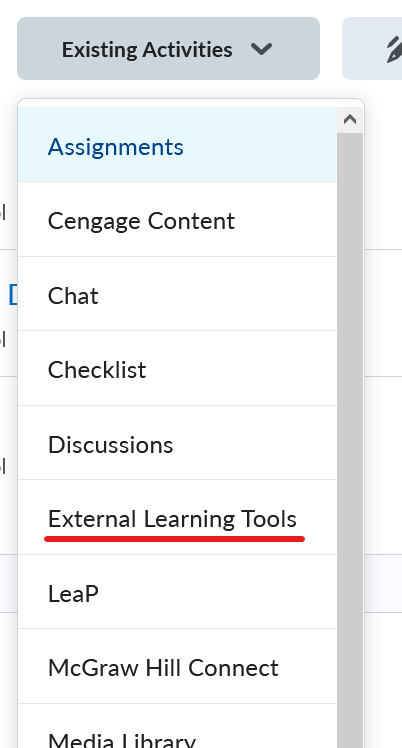
In your course or module click the Existing Activities button

Step 2

From the drop down list, select External Learning Tools
 

Step 3

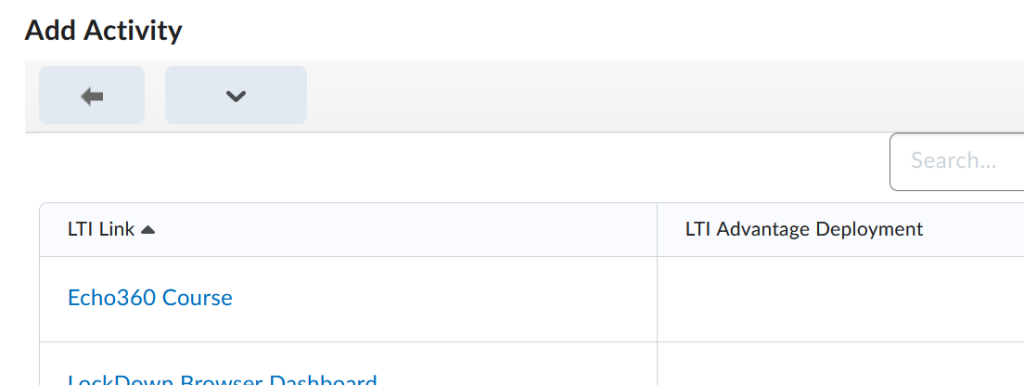
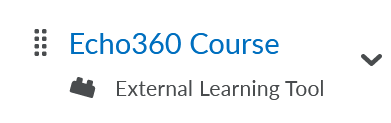
From the list of services select Echo360 Course
 

Step 4

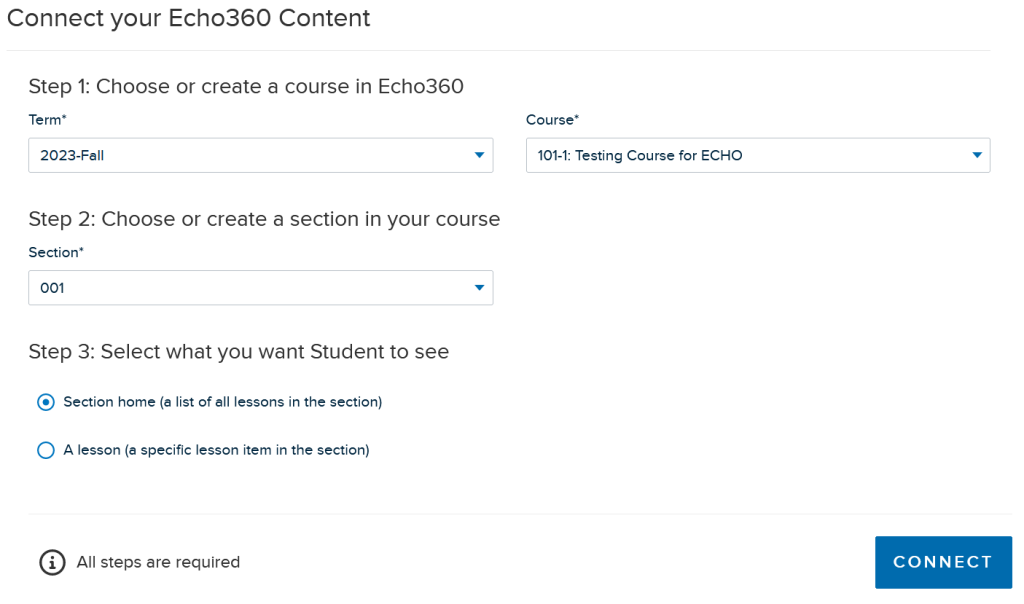
Click on the Name of the created item, then on the next screen select the term, course and section. It is recommended to leave the option for section home as the default
Step 5

Once the connection is made, you will see the EchoVideo interface.

Reusing old course content in Brightspace

Over the course of 2022, instructor-created content from 2019-2022 LIU Class course sites will be moved into LIU Brightspace as reference material, where you may choose to reuse it to build your new Brightspace course sites. It is important to note that this content will be moved into corresponding LIUBrightspace “Reference Sites” under the equivalent term — content from a Spring 2022 LIU Classes course site will be moved into a corresponding Spring 2022 LIU Brightspace reference site; it will not be moved into your active Brightspace course sites, action IS required on your part if you choose to reuse this content.

Class Gamification

Create an interactive gaming experience to improve engagement

Game Based Learning (GBL) is the use of games to enhance the learning experience.

Incorporating game based mechanics, visual design, and thinking into a course can help organizations improve learner motivation and engagement. Learners who are engaged are more inspired to succeed.

A highly interactive gaming experience is something that many learners are already comfortable with. They can proceed at their own pace and get immediate feedback about their progress.

In a game based environment, learners work towards a set goal. A risk-free setting encourages experimentation by letting them choose their own actions. They can even repeat a step if they need to.

Instructors can determine the scope and depth of the gaming experience, implementing game based learning that fits unique needs and objectives.

In the spirit of gaming, learners can personalize their learning experience by creating their own unique character (an avatar) using the Create Avatar process. The avatar is visible when learners access the Game Map.

Designing a Game Based Learning module

To motivate and engage learners, D2L recommends considering the four stages of course gamification when designing your Game Based Learning module:

  • Stage one: know your learners. To make sure your gamified course meets your learners’ needs, first analyze their player types.
  • Stage two: design a game plan. Consider how your mechanics will work and how often learners will encounter them.
  • Stage three: create gamified content. Be creative and put your mechanics to work.
  • Stage four: play the game. It takes time and even a little trial and error to create a great gamified experience, but these four simple steps are fundamental guidelines towards which all gamification effort should be built.

https://community.d2l.com/brightspace/kb/articles/3418-create-an-interactive-gaming-experience-to-improve-engagement


Gamifying a course using awards in Brightspace

In Brightspace there is an awards system that you can set up with conditions that will grand a student that award when the conditions are met.

From your course menu go to Class tools > Awards> Course Awards.
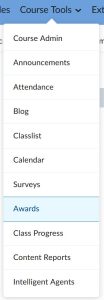
 

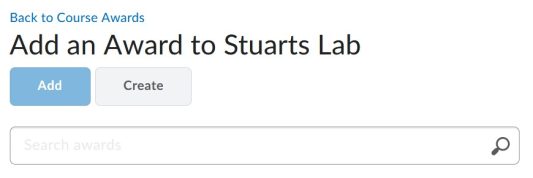
From there you Click “Add Award to Course” then click “Create”.

 

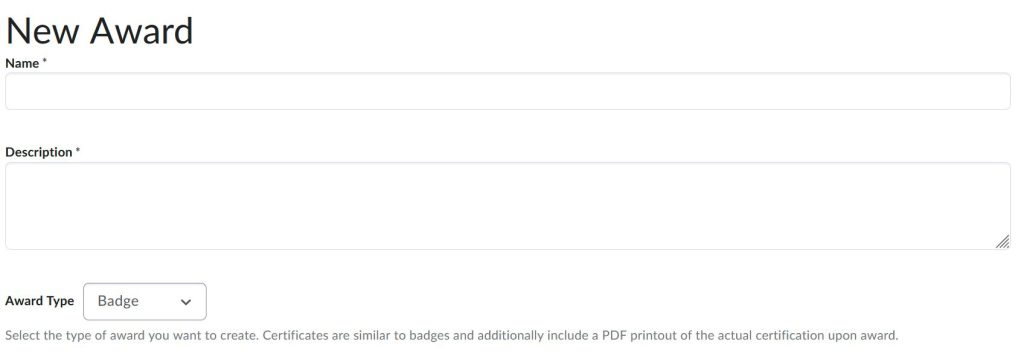
Give the Award a name, a description that explains how to claim the award and select if it’s a certificate or a badge. A certificate will issue a pdf certificate that you create.
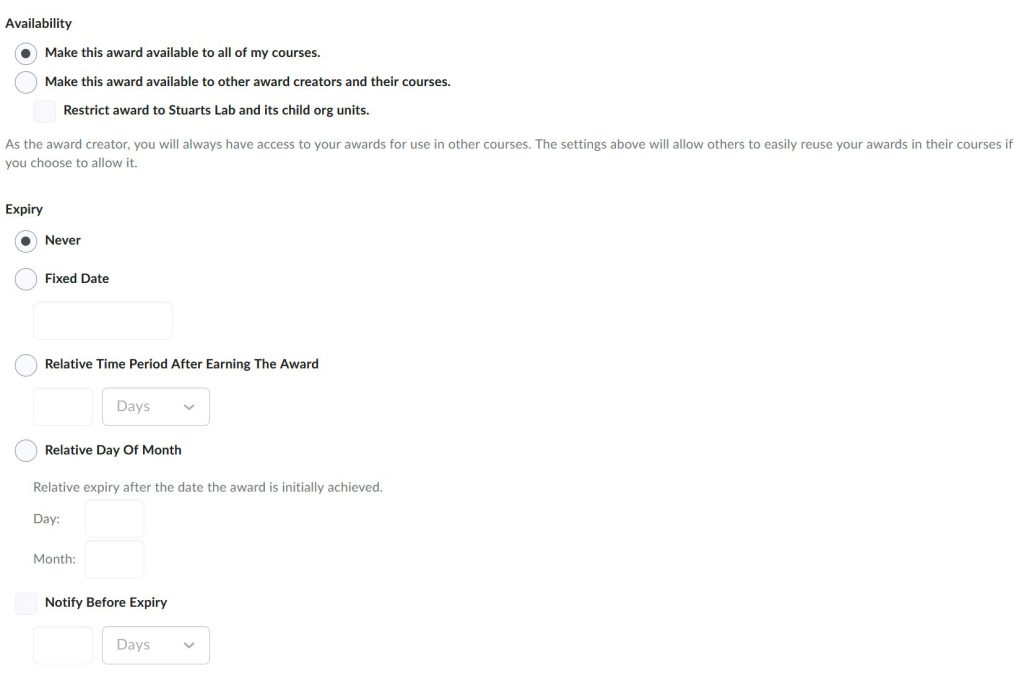
Set the availability and expiration dates if any
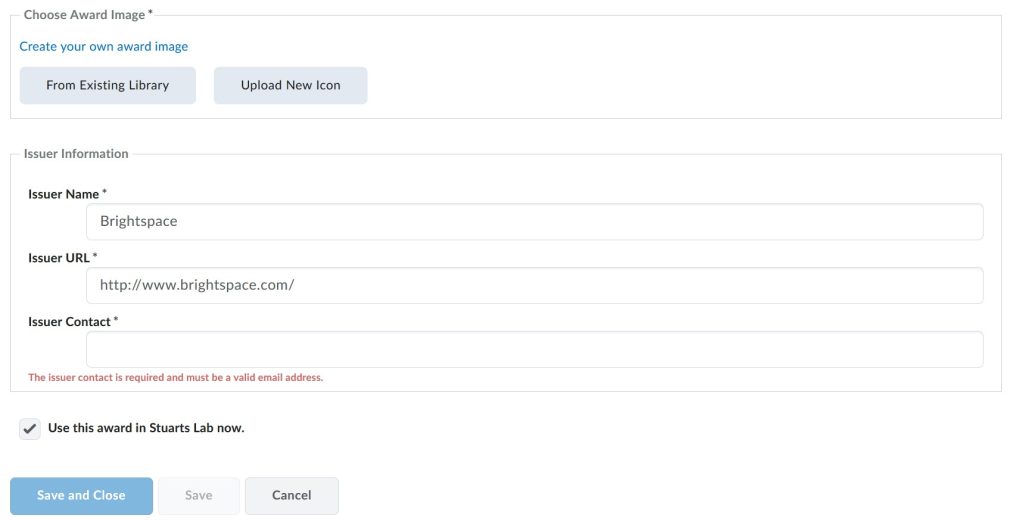
Choose an icon that best fits the award, or you can create your own. Set the issuer information and email then click save and close.
 

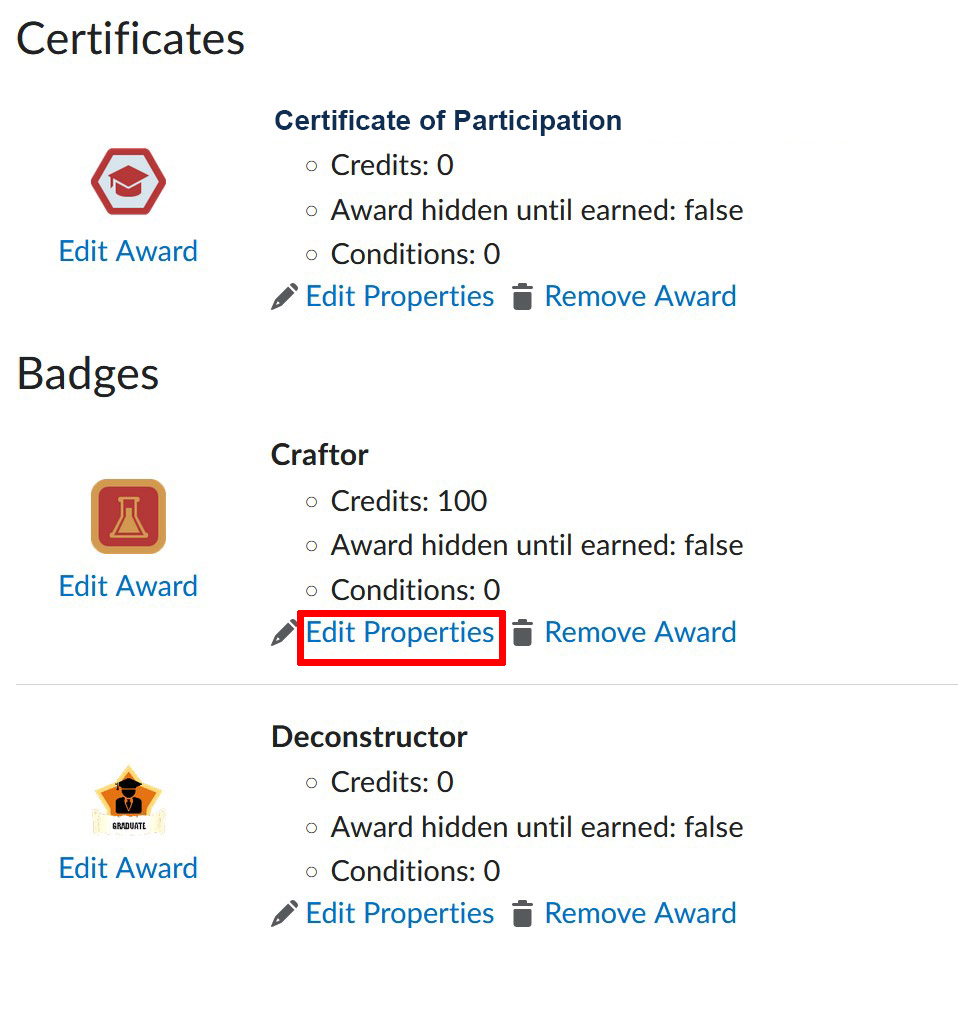
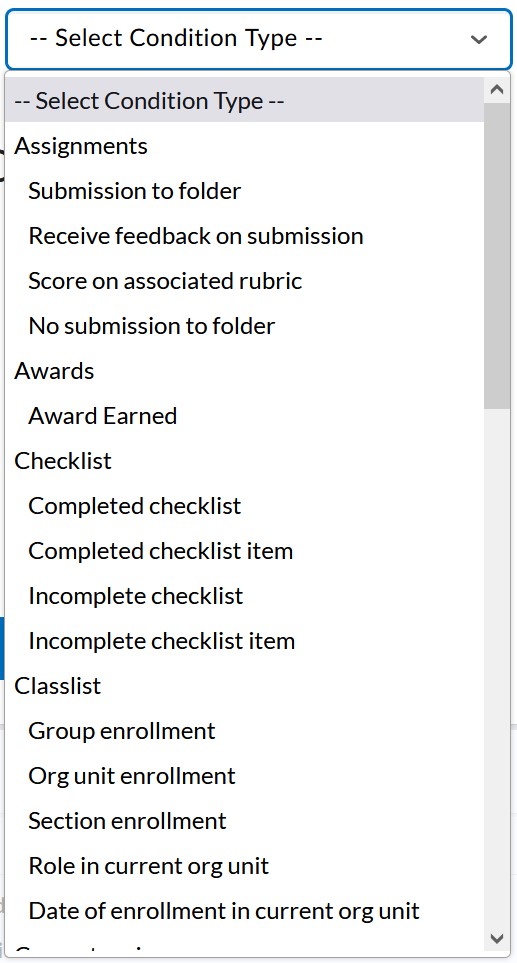
Finally, Click to edit the properties and you can set the credits and the conditions under which the award is given
 

Grading Paper Based Assignments in Turnitin

Sometimes a test may have to be given on paper due to the nature of the material being taught, or sometimes the answer to a question just can’t be done in words or a text editor. Turnitin now has a solution for you!

Click this link to find out more about this feature and how to use it.

Additional Videos

More Tutorials

Brightspace offers many live and recorded webinars on the various aspects of the platform. Register for membership to join Brightspace Communities where you can access these resources and more.