

Teams in Brightspace Integration
In order to make the process of creating meetings easier, Microsoft Teams has been integrated into Brightspace. To quickly set a meeting up in your course follow the instructions below.
Step 1
After logging into Brightspace and selecting your course, click on “Teams” in the blue navigation bar.

Step 2
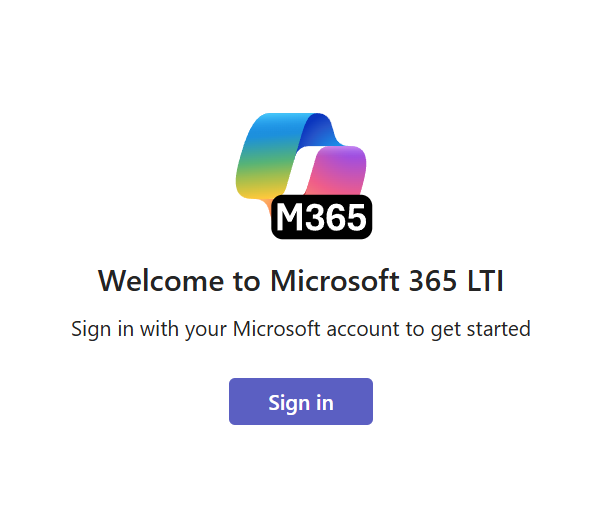
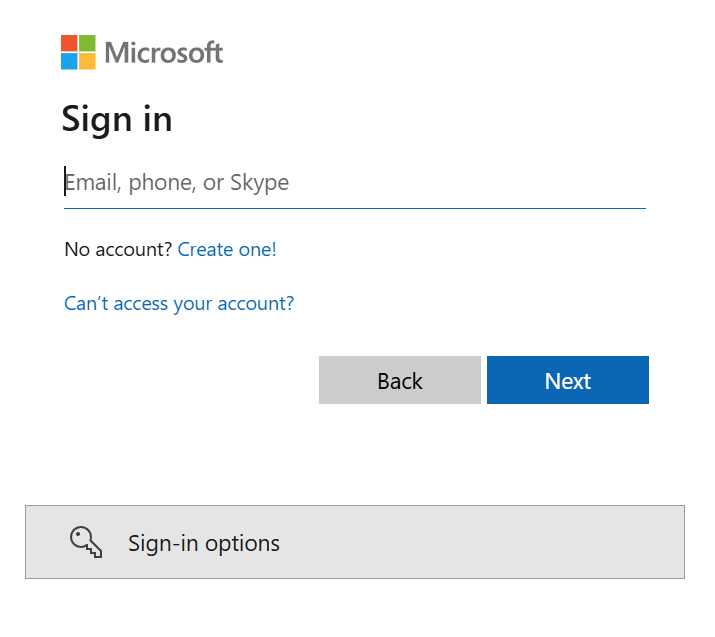
Click the “Sign in” button in the middle of the page. Then sign in with your LIU Credentials.
Step 3
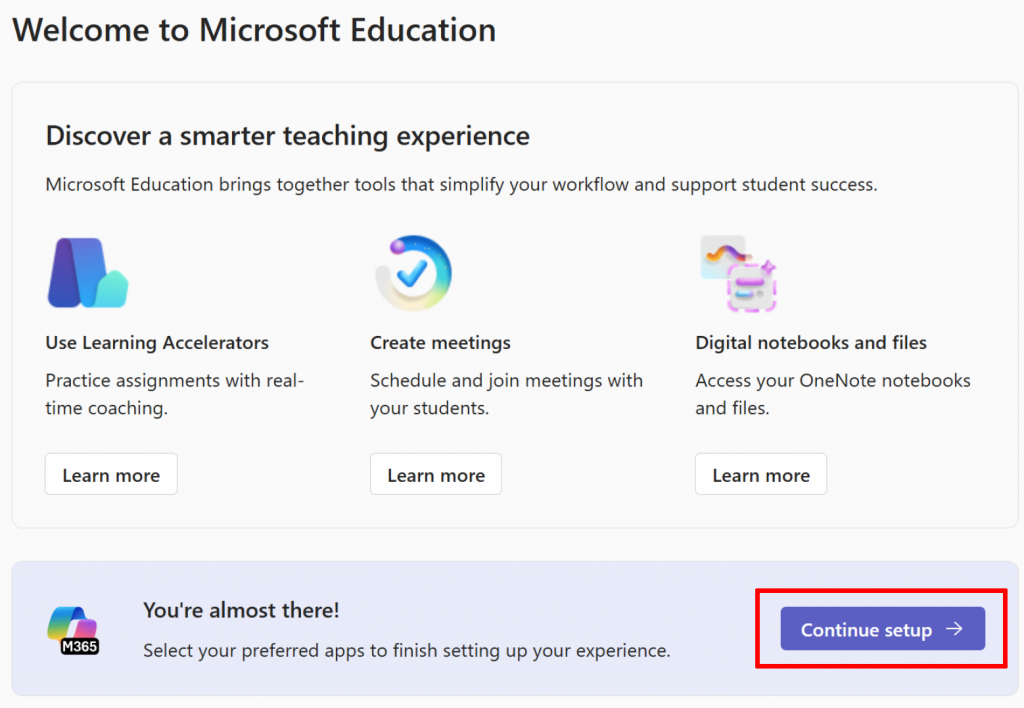
Click on “Continue setup.”
Step 4
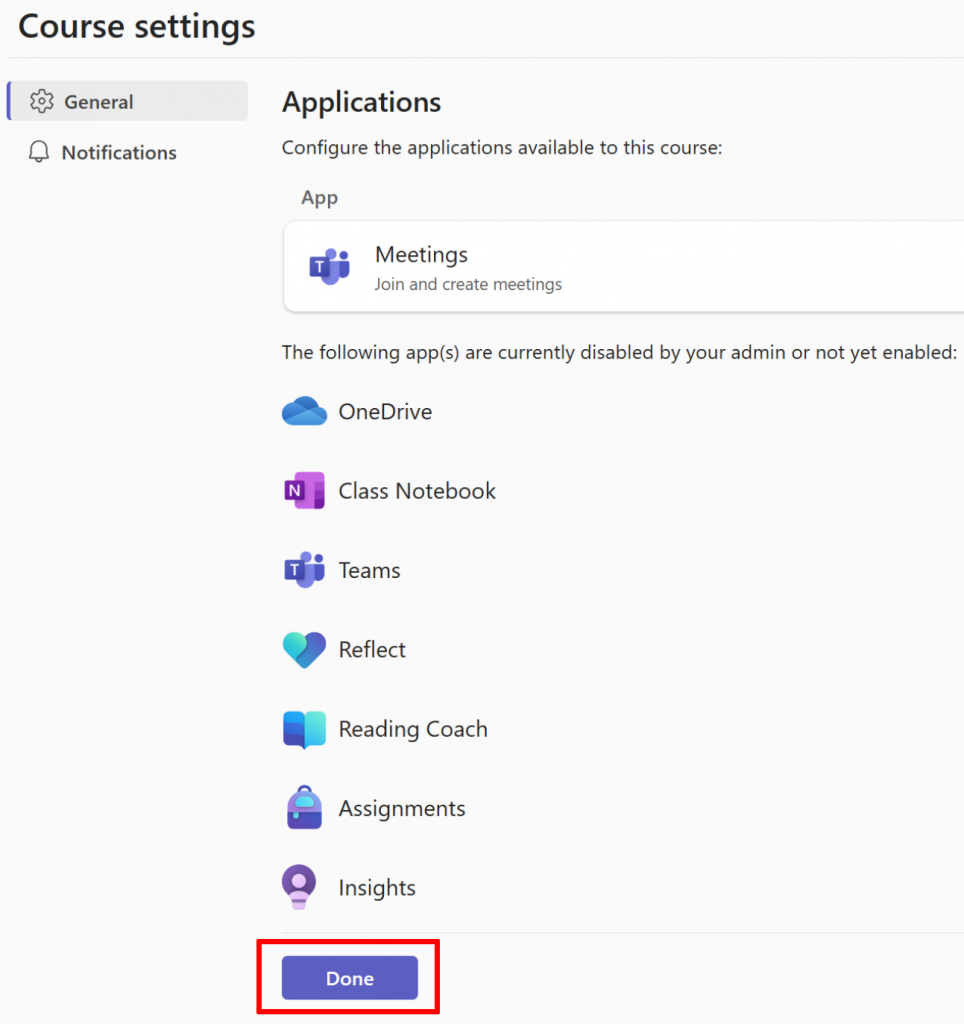
Click on “Done”
Step 5
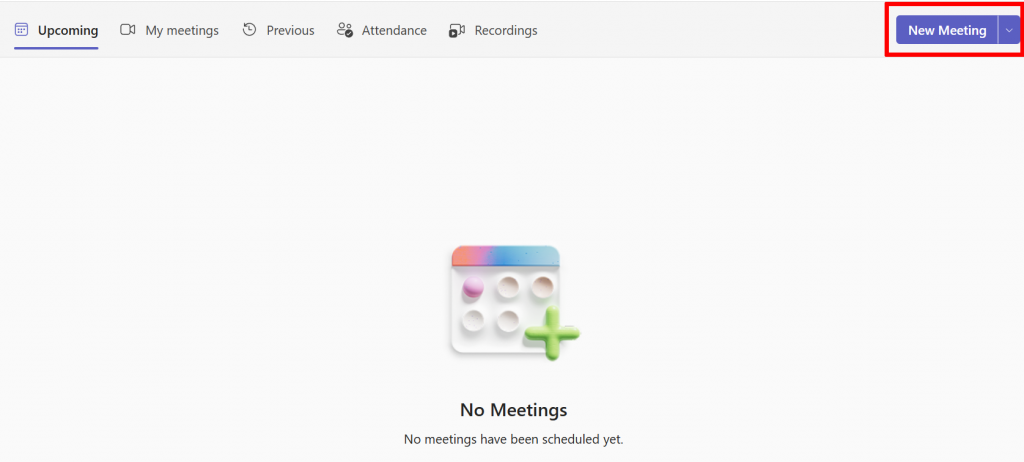
After completing the above steps, you will see the “New Meeting” button in the upper right.
Step 6
Enter your meeting information as usual. Then click on Attendee settings.
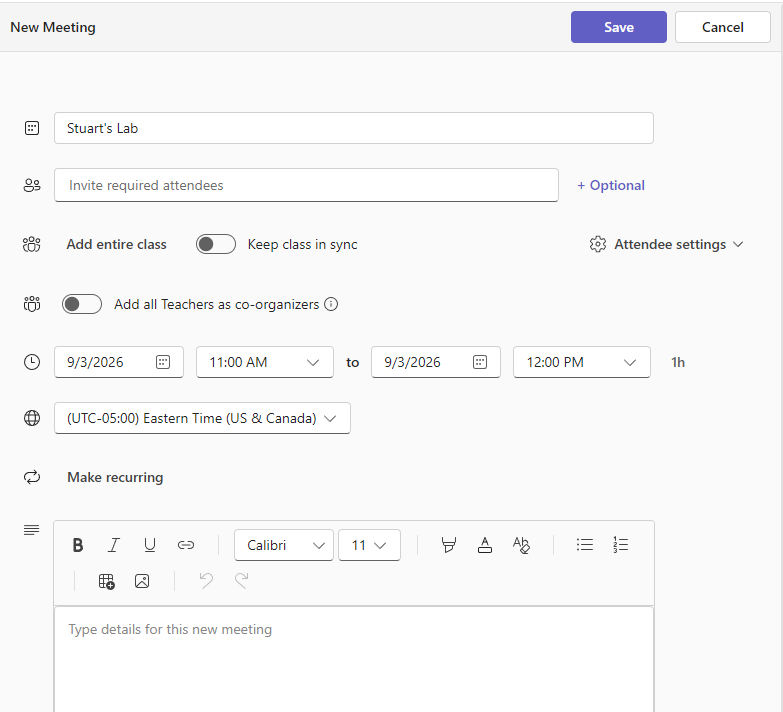
Turn on the option to Allow anyone in the course to Join.

Step 7
Click “Save”