

DUO Security
Before starting, it is recommended to download and install the Duo Security app on your mobile device. you can get it from the Apple Store or Google Play.
 |
 |
Then on your computer, Go to duo.liu.edu and follow the steps below.
Step 1: Welcome Screen
After Logging in you will be greeted with a welcome screen, click next through the various screens until it asks for a phone number.
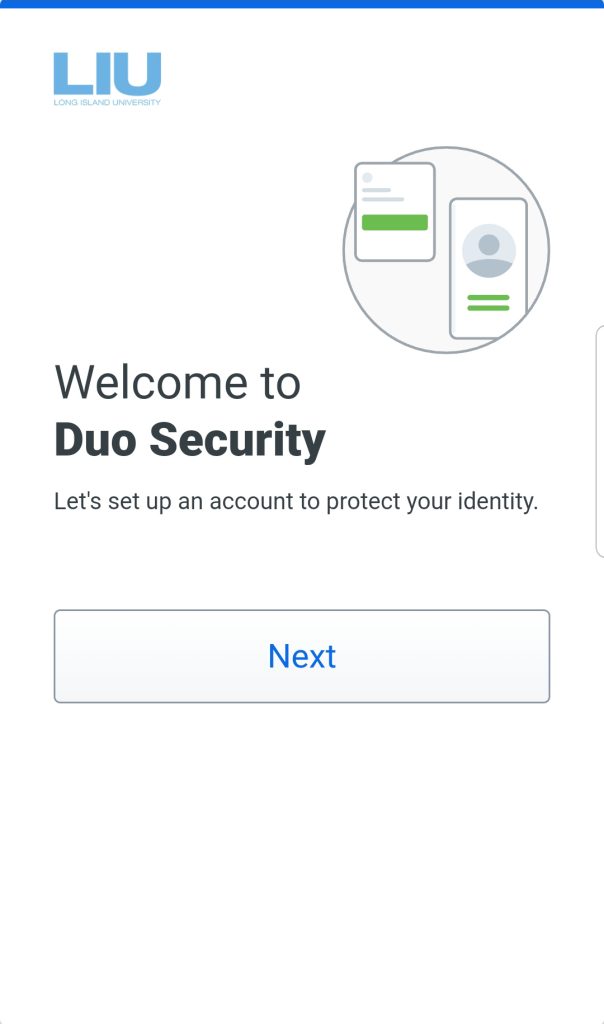
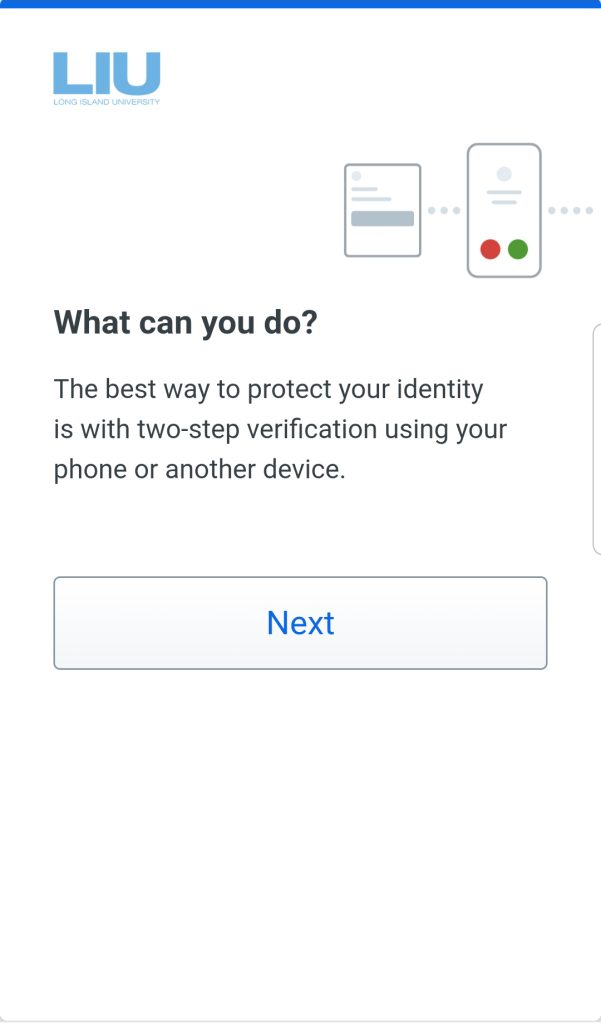
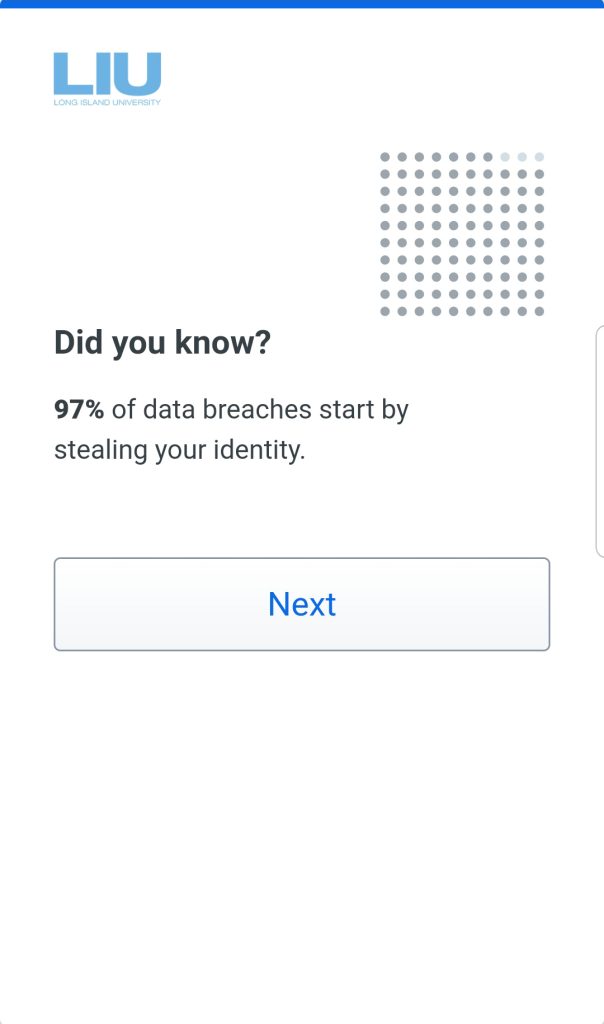
Step 2: Enter Your Phone Number
Select your country code from the drop-down list and enter the phone number of the device you will be using for verification. Then click on “Add phone Number”, (If you’re enrolling a tablet click on “I have a Tablet”). Then verify that the number you entered is correct.
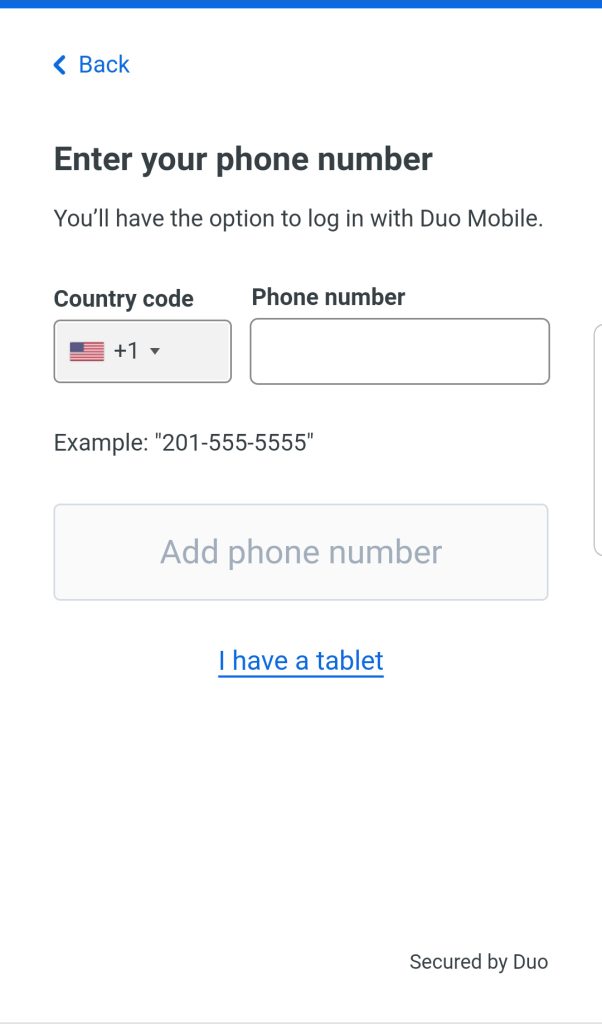
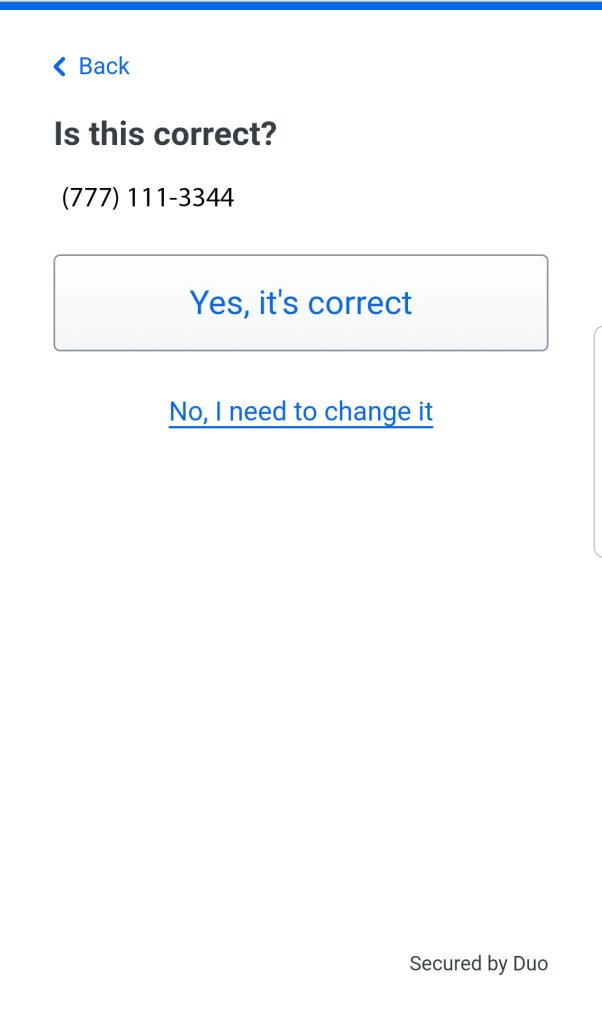
Step 3:
If you haven’t don so already, install the DUO Mobile App on your device. Once done click “Next”.
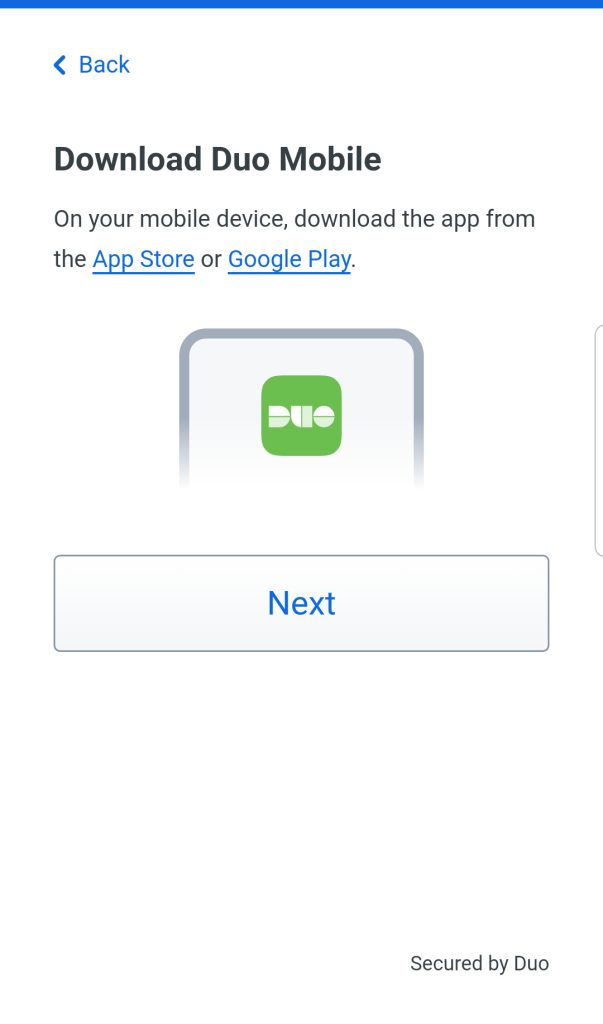
Step 4: Adding LIU to your Duo app
On your computer, You will get a QR code similar to this on your screen.
Open the Duo App on your phone then select Add a new account and choose the option from QR code. Scan the QR code on your computer, then
Click Continue.

Congratulations!
Your device is ready to approve Duo push authentication requests. Click Send me a Push to give it a try. All you need to do is tap Approve on the Duo login request received at your phone.