
MyLIU
Time Submission
Submitting your time (Step by Step)
Step 1
Go to my.liu.edu and log in with your LIU credentials.
Step 2
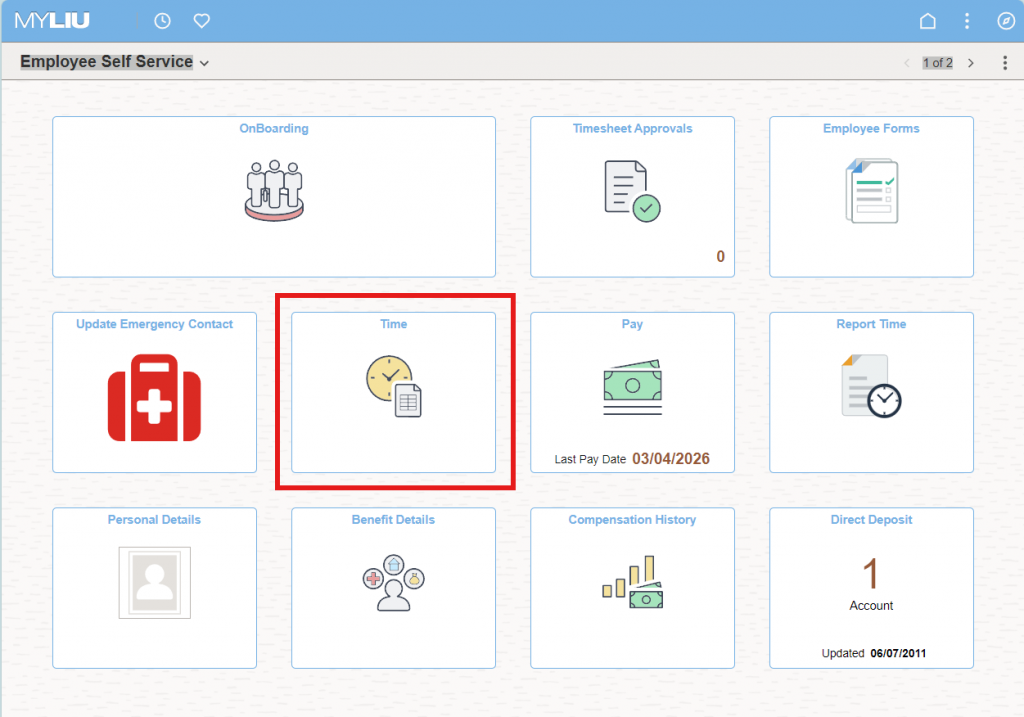
On the home page, click on the Time tile.
Step 3 A
Enter the appropriate punches in each column. Select the drop down box under Time Reporting Code to indicate type of hours.

Step 3B
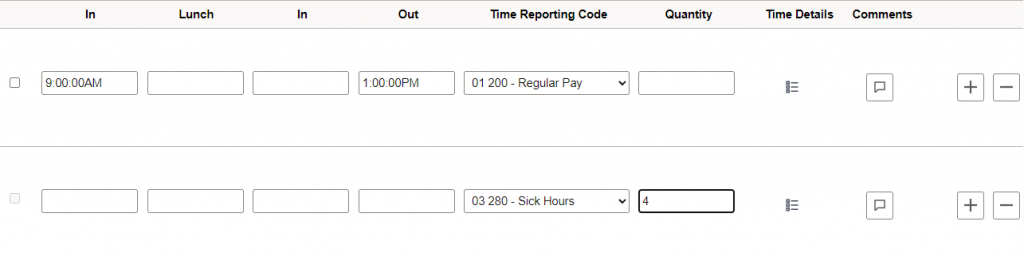
The number of hours in the Quantity column should only be populated if it’s not hours worked. Example shown below.

Step 3C
If you are submitting partial hours for the day, First enter the hours that you worked (arrival and departure) select Regular pay. Then click the plus icon to add a second row.

On the second row, select the appropriate category for the absence and the number of hours.
Step 4
After entering all the time details, click the Submit button.

Step 5
Click the OK button to confirm the message.

The employee’s hours have been submitted to the supervisor for approval.
Time Approval
Approving submitted time (Step by Step)
Step 1
Go to my.liu.edu and log in with your LIU credentials.
Step 2
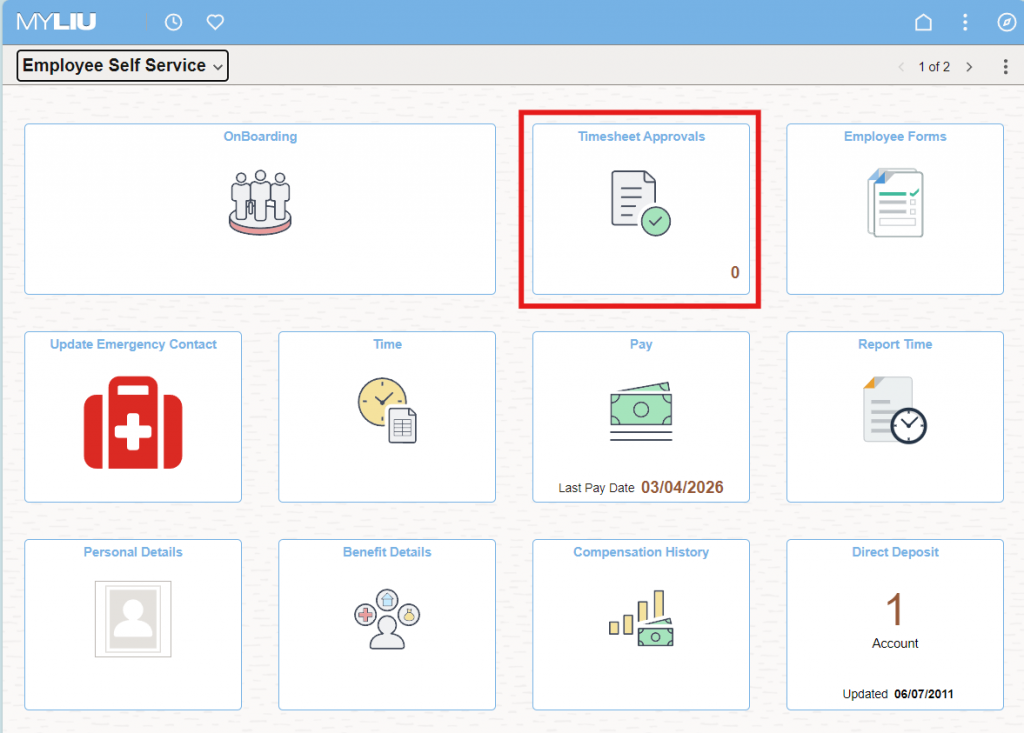
On the home page, click on the Timesheet Approvals tile.
Step 3
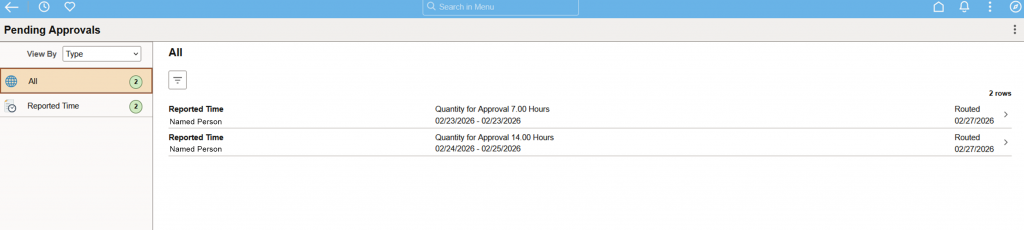
Select any entry from the list of submissions awaiting approval. If a person has both regular hours AND vacation, sick time, etc in their submission, you will see more than one entry for them.
Step 4
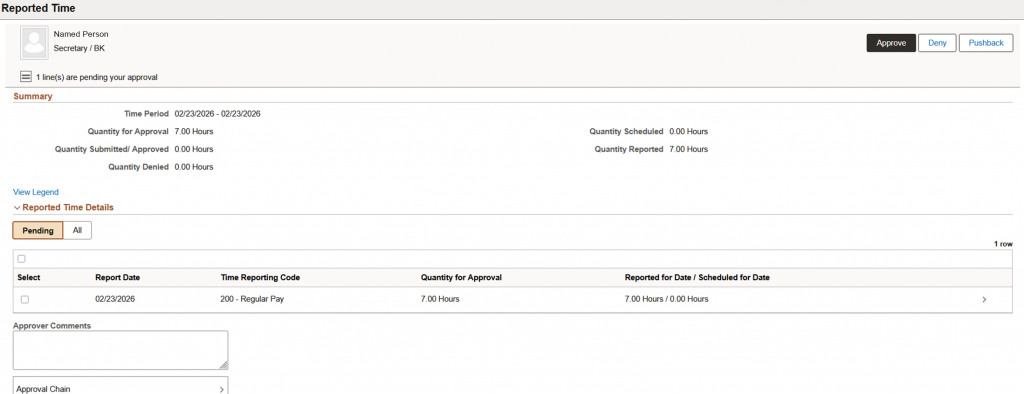
Select one or all entries using the check boxes on the left. Then click either the Approve or Deny button for the entries selected.
Step 5
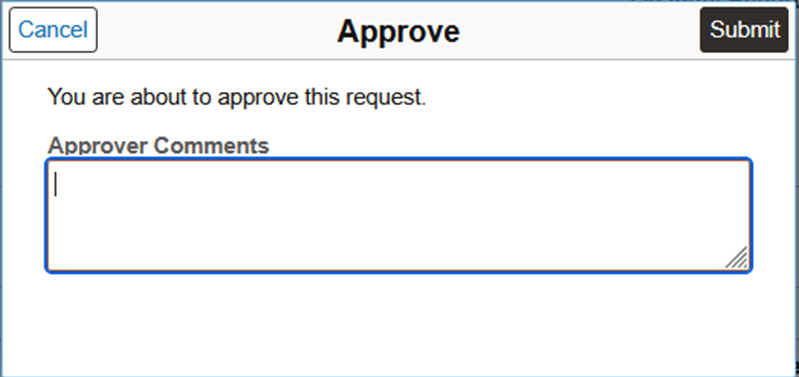
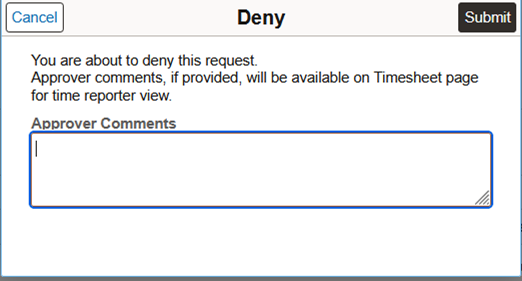
Enter your comments (if needed) for your approval/denial then click submit.