

MyLIU
The MyLIU portal provides students with convenient access to information about their records. By logging onto the portal, students may view their schedule of classes, register for courses, obtain their grades, request transcripts, and apply for graduation. They may also view financial aid awards, billing information, make online payments, accept and decline federal loans and Federal College Work Study, and make an appointment to see counselors. For more information, please visit or contact the helpdesk at Browse, LIU Brooklyn’s technology store.
Click here for a downloadable pdf
Step 1
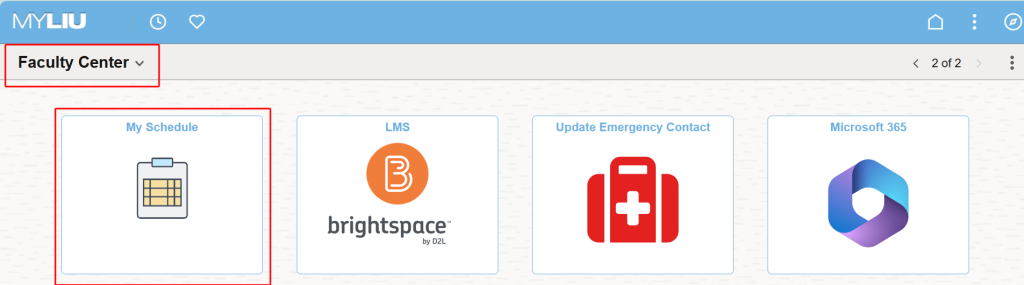
In Order to grade your students, you must first login to the MYLIU portal with your LIU credentials. Then under the Faculty Center menu item, click on My Schedule.
Step 2
If the correct semester is not showing, click on the Change Term button and select the correct term.

Step 3
locate the class you wish to grade and click on the Grade ROSTER icon. (DO NOT CLICK ON GRADEBOOK)

- If you do not see the Grade Roster icon, then your class has not been opened for grading. Please contact the Registrar’s Office.
- If you do not see your class listed on this page, then you have not been properly connected to the class. Please contact the Registrar’s Office
Step 4
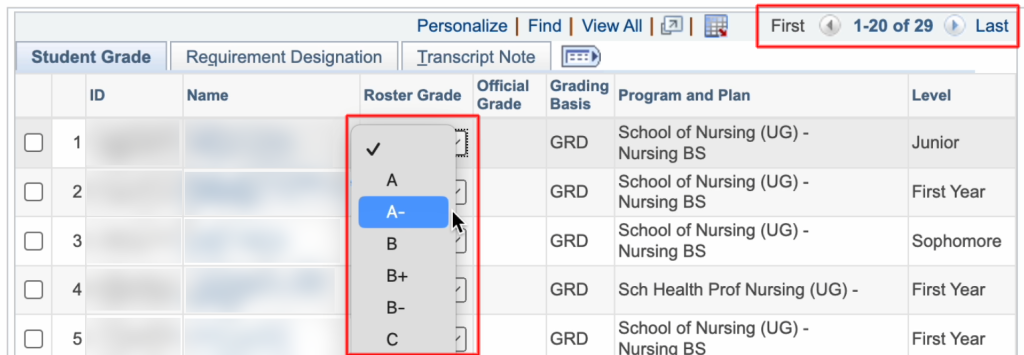
Enter your grades in the Roster Grades column. If you have a large class, make sure to check if there are multiple pages.
Step 5
Once you are finished grading, you MUST SELECT Approved from the drop down and click SAVE. You are now done with grading.
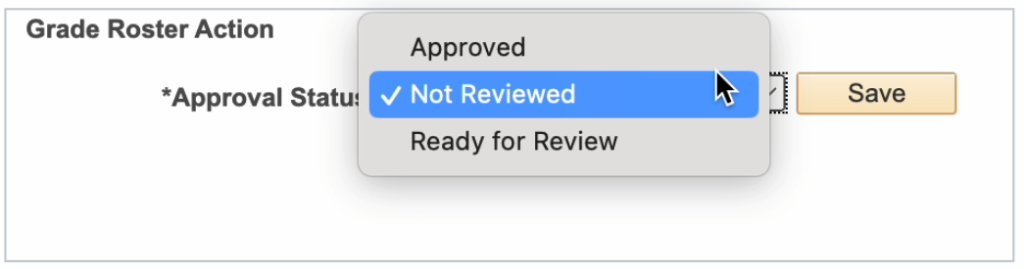
Note: If you need to take breaks between grading, leave it on Not Reviewed and be sure to click SAVE. This will save your partial progress until you are ready to approve final grades.
Important Reminders
Grades are due 48 hours after your final class meeting/final examination.
Timely submission of final grades is critical, as Registrar staff must quickly begin the process of clearing candidates for degree conferral. In addition, we must quickly review the status of probationary students, and determine those who qualify for inclusion on the Dean’s/Honor’s List.
NC – No Credit Earned
The grade of NC should be assigned when a student never initiated proper withdrawal procedure and either stopped attending a class by the withdrawal deadline (10th week of the term) or didn’t attend the class at all. This grade should NOT be used as a “kind” alternative to an earned F. In many instances, an NC can affect a student’s financial aid eligibility for the current and future terms and might require the university to return federal financial aid funds, since the credits are not counted in their units taken/completed.
INC – Incomplete (General)
Not included in GPA; included in hours attempted. Should be assigned when discussed with a student and it is determined that all required work will not be completed by the end of the term. Students have one year to complete the unfinished work. Faculty must submit a Change of Grade in MyLIU upon completion of the work. If a student requires an extension, they must request this through their dean’s office prior to the one year period. Otherwise, INC grades not resolved within one year will remain permanently on the student’s record.
W – Authorized Withdrawal
Not computed, counted in hours attempted. Indicates a student-initiated withdrawal. This grade is preprinted on the grade roster.
AUD – Audit Non-credit.
Not included in GPA. This grade is preprinted on the grade roster.
| Regular Grading Basis | ||
| A | Excellent | 4.000 quality points per credit hour |
| A- | 3.667 | |
| B+ | Very good | 3.333 |
| B | Good | 3.000 |
| B- | 2.667 | |
| C+ | Above Average | 2.333 |
| C | Average | 2.000 |
| C- | Below Average | 1.667 (available for undergraduate courses only) |
| D | Passing | 1.000 (available for undergraduate courses only) |
| F | Failure | 0.000 |
| Pass/Not Pass Grade Basis | ||
| P | Passing | Not computed in GPA |
| F | Failure | 0.000 |
Error Screens
If you click on any of the new features that are not yet functional, you will get the following:
After clicking “OK” the message will disappear and will give you the next: “You are not authorized for this page.”

This message will appear if you change your grading status to “Approved” without having all students graded. Click “OK” to go back, then change the status back to “Not Approved.”
