

Locate Teams Recordings
By Default, any meetings you record are stored in your OneDrive for 60 days before soft deletion (see information at bottom). There are two ways you can access recordings:
From Onedrive:
Step 1
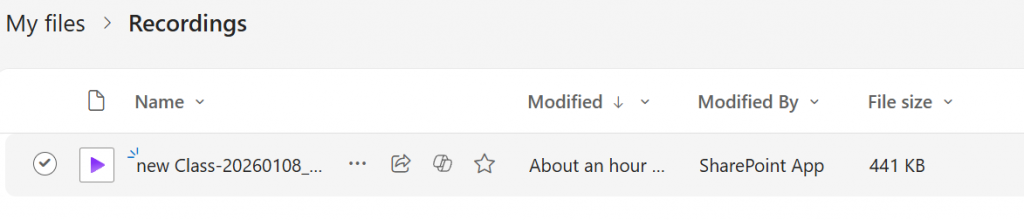
You can access ALL recordings (including class recordings) by locating the “Recordings” folder inside the “My files” directory.

Step 2
You will see all the videos listed here
Step 3
Once you have located the video in the list , click on the video’s name to access settings and to be able to share or edit.

From Brightspace:
If you are searching for class recordings, it is best to access them from with in Brightspace to get the correct recording. Personal recordings outside of Brightspace classes will not show here.
Step 1
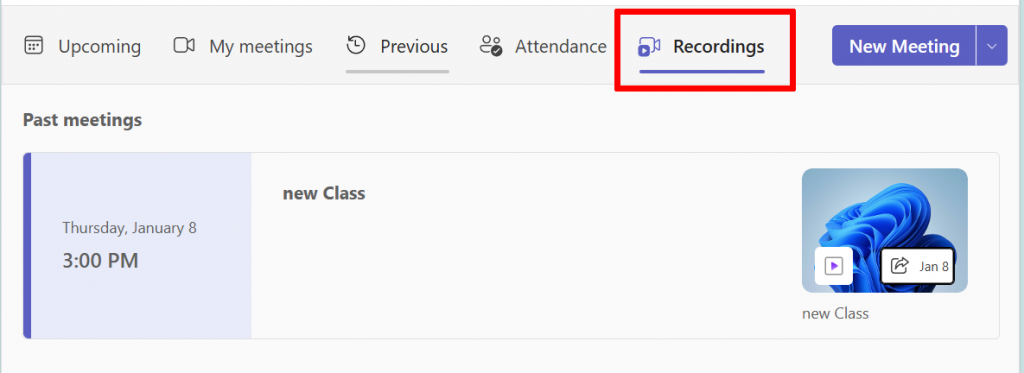
After selecting the correct course, click on “teams” then click on the “Recordings” tab.
Step 2
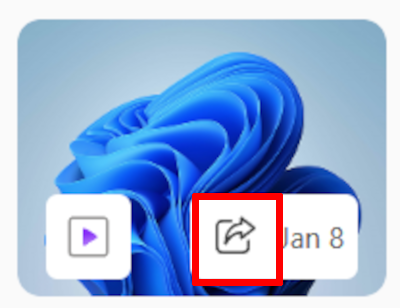
Click on the sharing icon (the box with the arrow) to be taken directly to the video in your OneDrive.
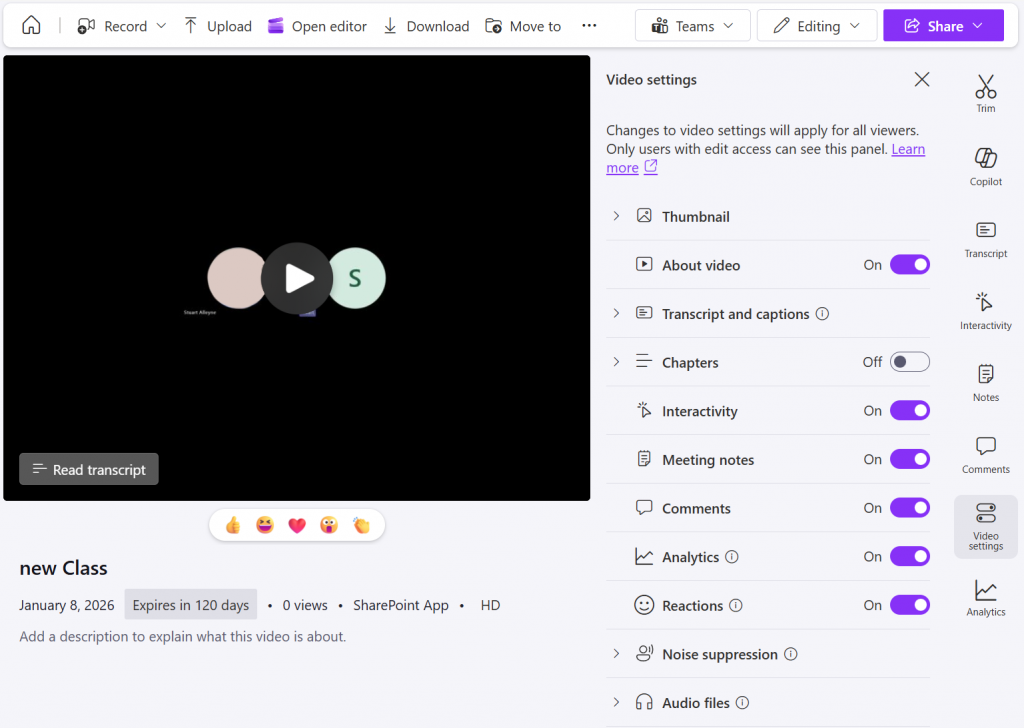
From here you can share, edit or change settings if needed
FINDING DELETED VIDEOS
All recordings older than 60 days will be moved from your Recordings folder to the recycle bin.
All content older than 30 days will be removed from the Recycle bin to the Second-stage recycle bin
All content older than 30 days in the Second-stage recycle bin will be permanently deleted.
That’s 60 > 30 > 30 > Gone.
To Prevent Videos from being Deleted Simply move them out of the recordings folder