Get Connected to LIU WiFi
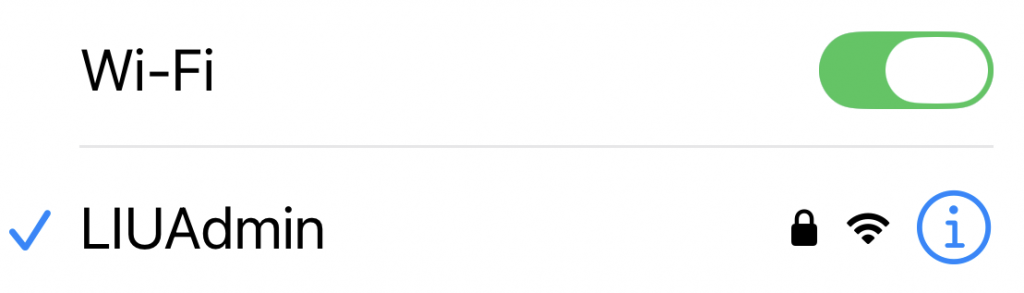
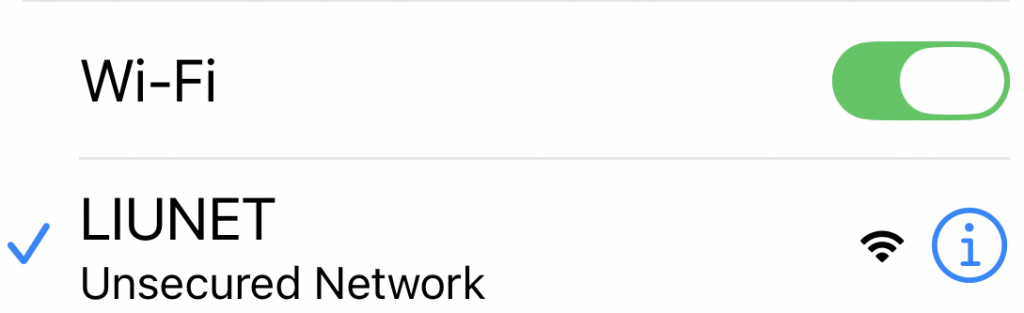
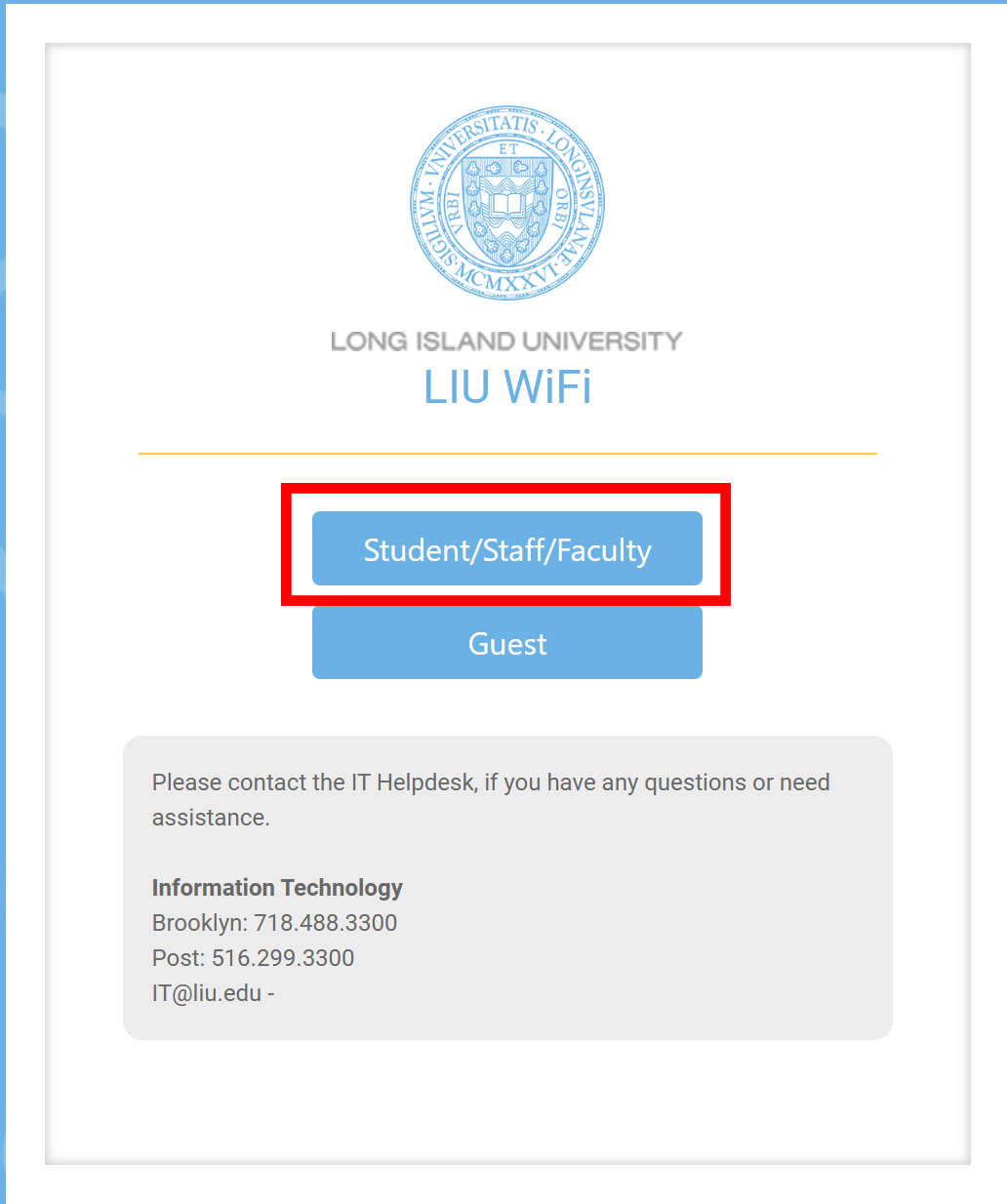
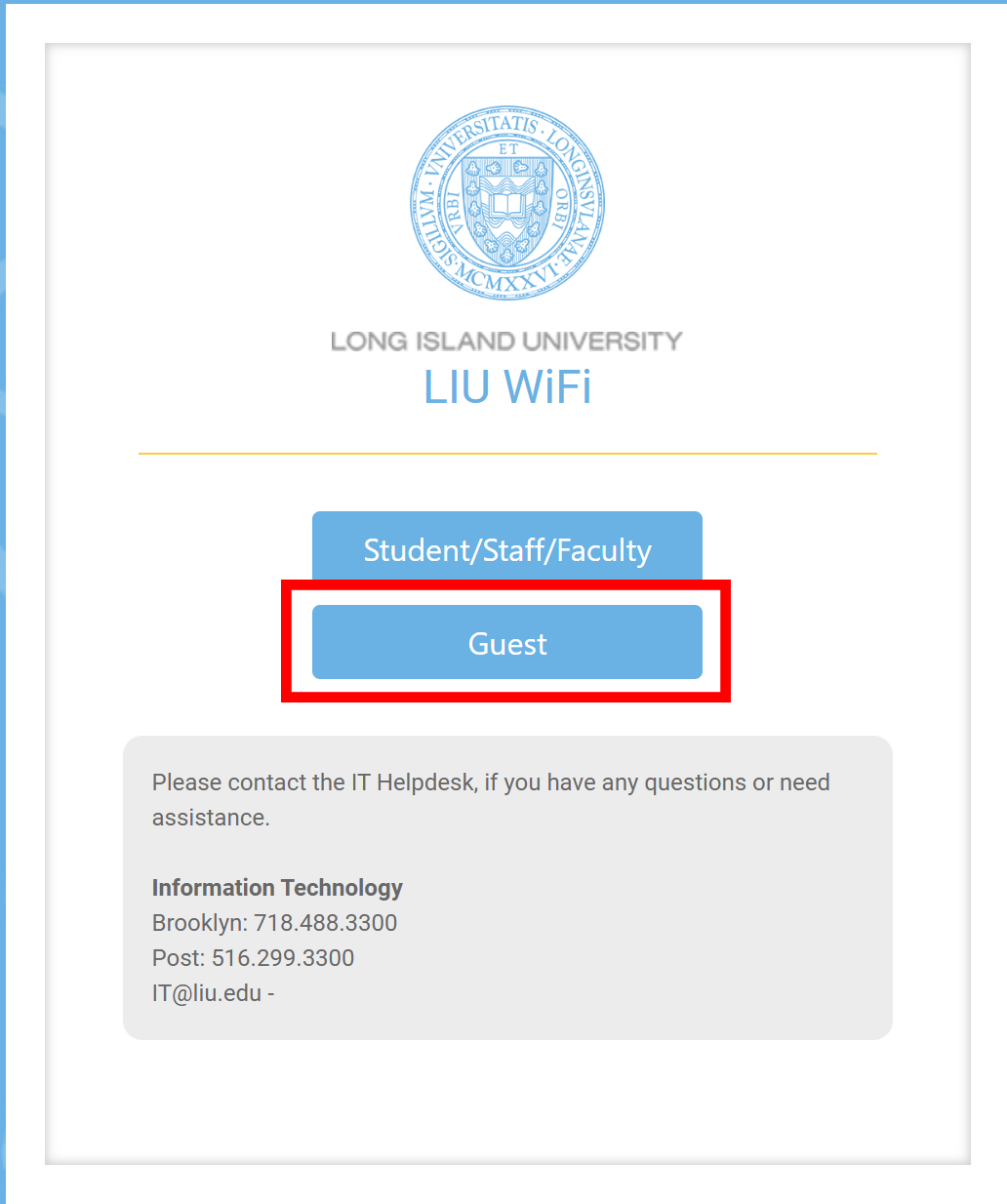
The LIU Wi-Fi network provides students, faculty and staff with free and fast Internet access almost everywhere on campus . To use the Wi-Fi network first choose the network suitable for your needs.


The LIU Wi-Fi network provides students, faculty and staff with free and fast Internet access almost everywhere on campus . To use the Wi-Fi network first choose the network suitable for your needs.
Turn Off Random/Rotating Wi-fi Hardware Address
If you are having issues with connectivity while using the LIUNET wireless network you will need to change this setting to improve your wi-fi connectivity (Affects LIUNET connections only). Choose instructions to the left for your device.
Permission must be granted to access this network.



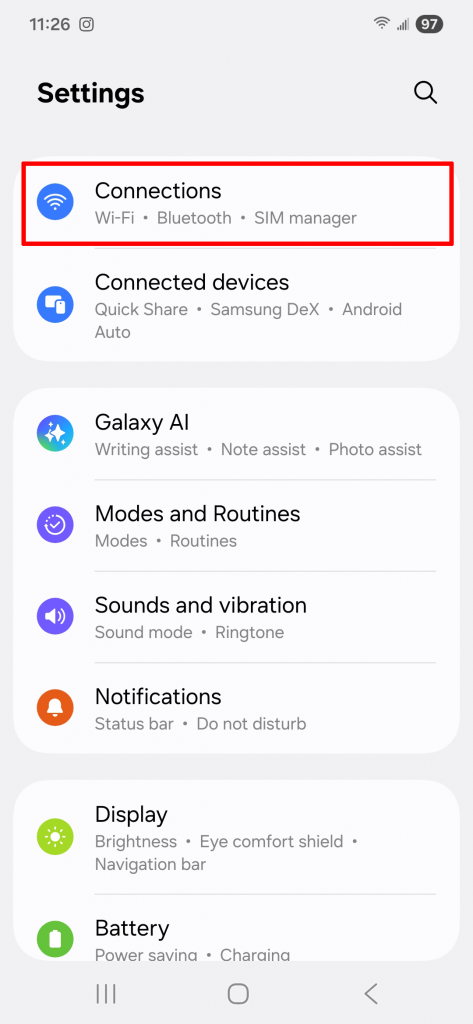
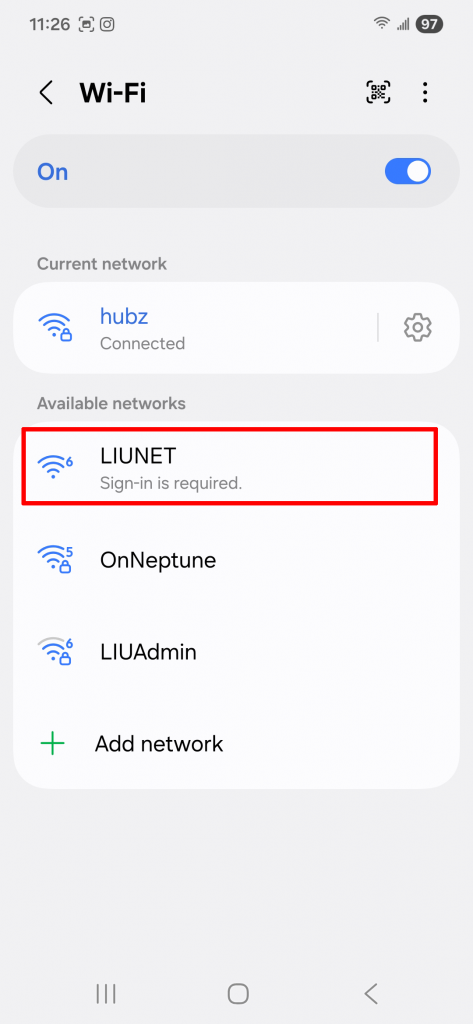
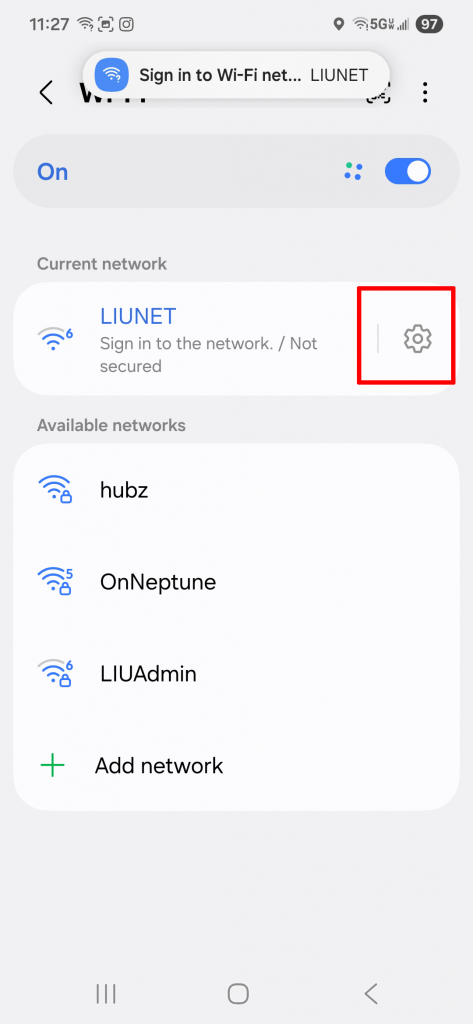
| 1) In your phone settings click on Connections. Then click on Wi-Fi (wi-fi must be on) | 2) Click on LIUNET | 3) Click on the gear next to LIUNET |
|---|---|---|
 |
 |
 |
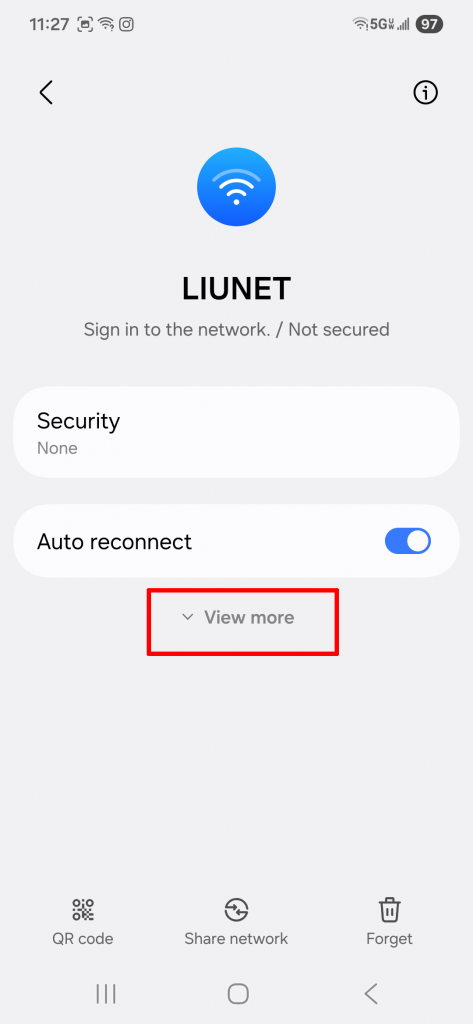
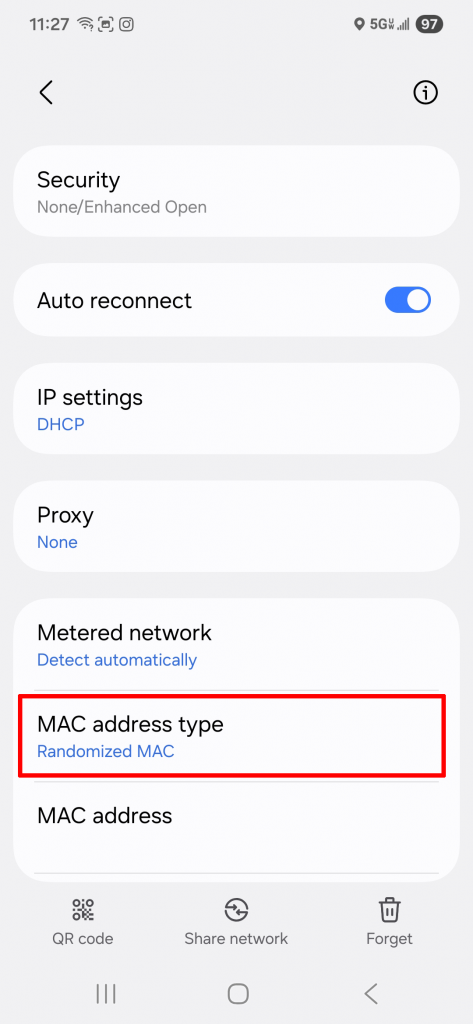
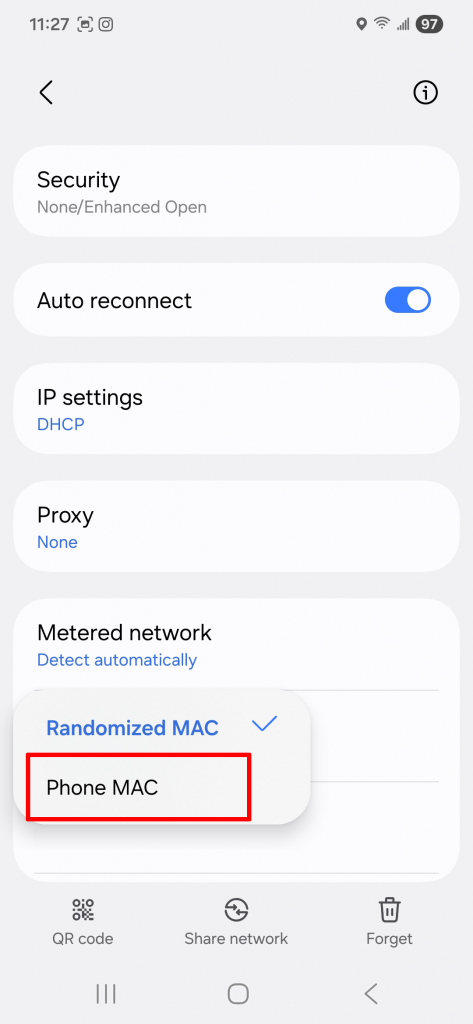
| 4) Click on View more | 5) Click on MAC address type | 6) Select Phone MAC |
|---|---|---|
 |
 |
 |
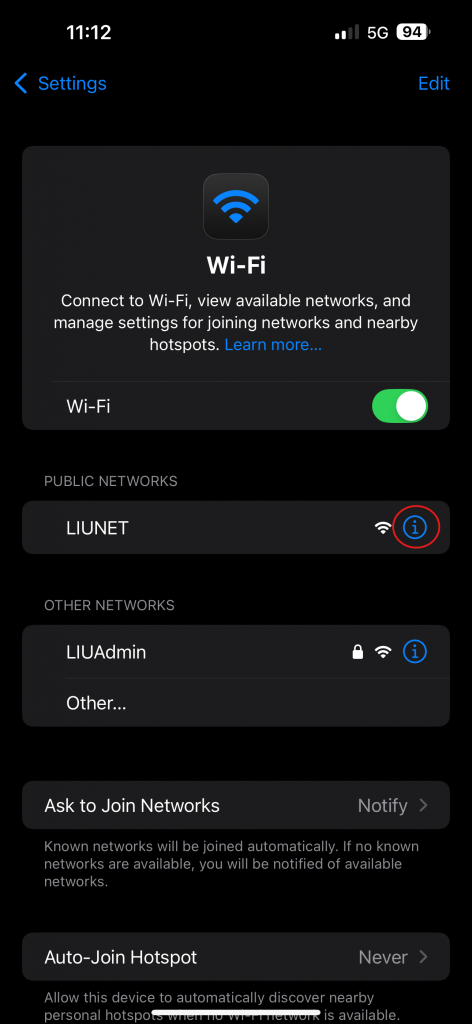
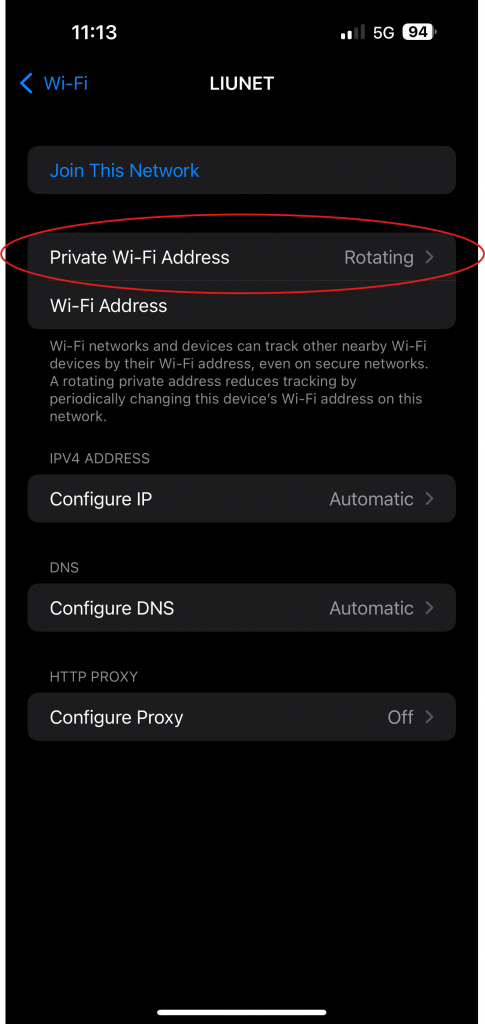
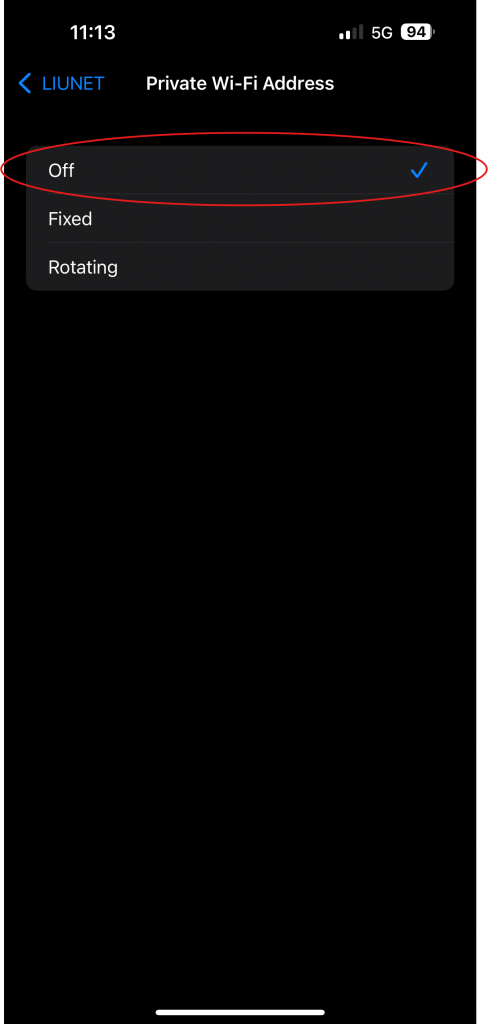
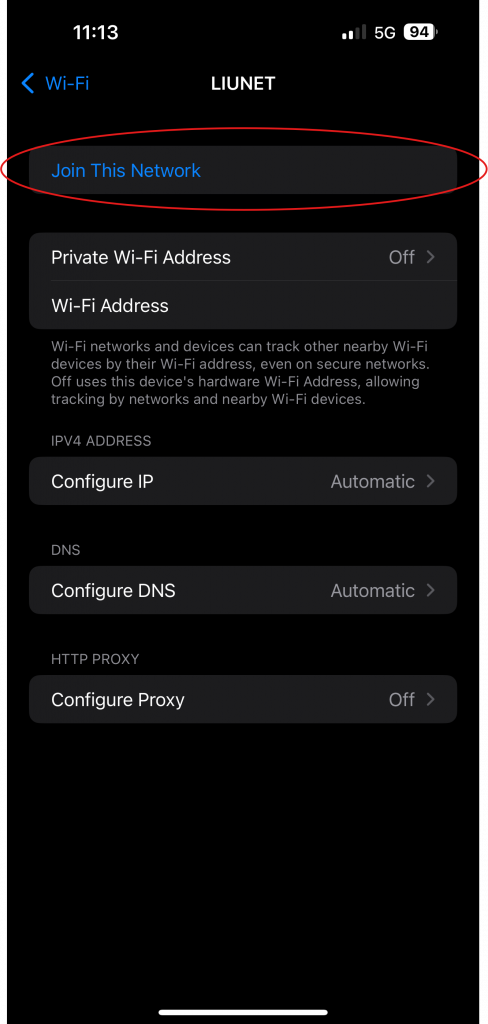
| 1) Click on the “i” next to LIUNET | 2) Click on Private Wi-Fi Address | 3) Select Off | 4) Click on Join This Network |
|---|---|---|---|
 |
 |
 |
 |
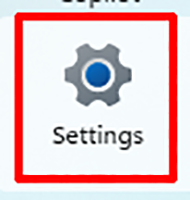
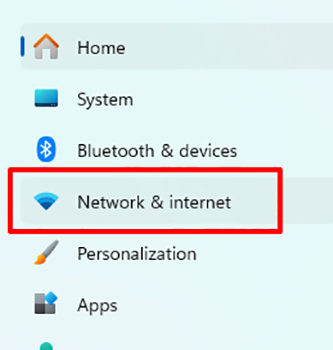
| 1) Click on the Windows logo, then select Settings | 2) From the setting menu, select Network & Internet | 3) Click on Wi-Fi, then click on Show available networks | |
|---|---|---|---|
  |
 |
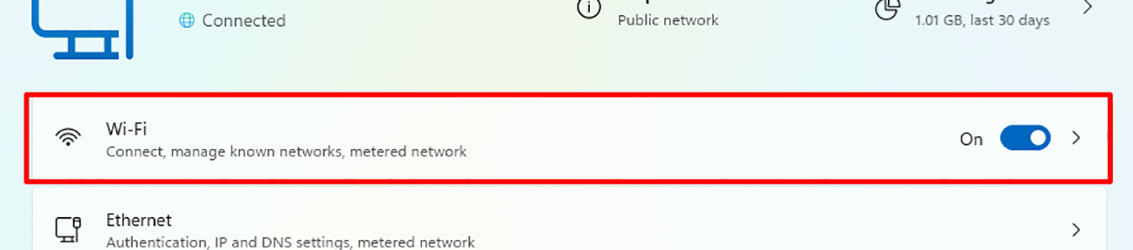 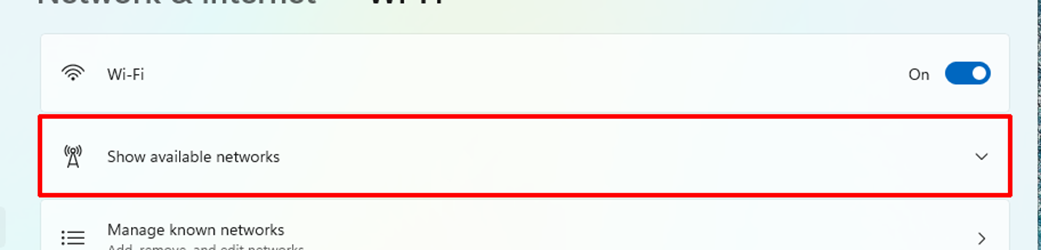 |
|
| 4) Select LIUNET | 5) Click on the “i” in the upper right corner, then under Random hardware address switch it to off. | |||
|---|---|---|---|---|
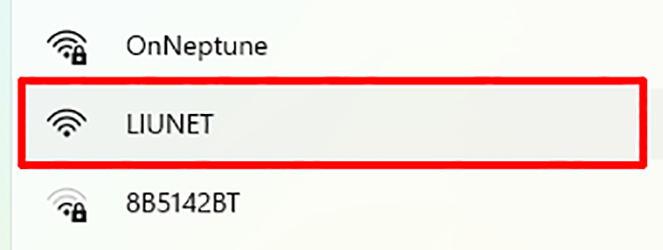 |
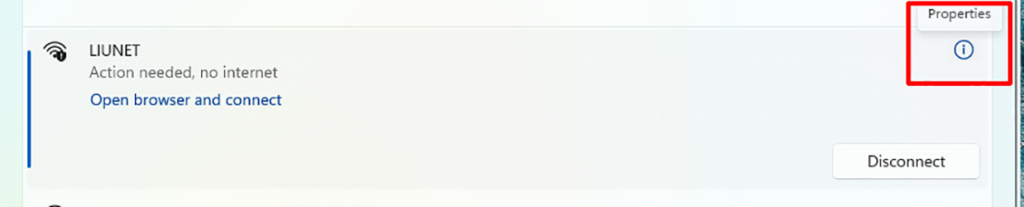  |
|||
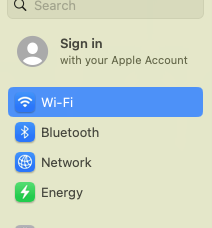
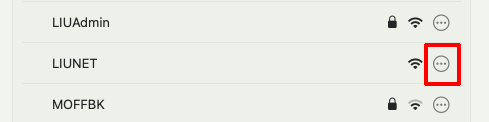
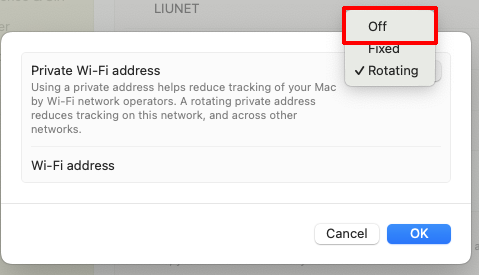
| 1) In the settings of your computer, click on Wi-Fi | 2) Find LIUNET in the list and click on the three ellipses | 3) Click on the drop down and select Off. Then click OK. |
|---|---|---|
 |
 |
 |
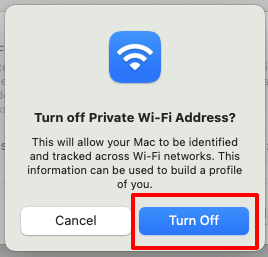
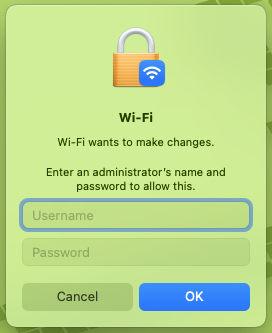
| 4) In the settings of your computer, click on Wi-Fi | 5) You may need to enter the password to accept the change if required. | |
|---|---|---|
 |
 |